
...
Figure 1. PAMS External Login
| For guidance on logging in, refer to Logging In. |

2. From the PAMS Homepage, click click View/Respond to Solicitations and skip to step 4 OR Navigate to the “Proposals” tab (Figure 2).
...
4. PAMS will load the “DOE National Laboratory Announcements – List” page, which displays a list of all open and closed DOE National Laboratory Announcements. Browse the list or use the filters or advanced search above the grid to locate the DOE National Laboratory Announcement you would like to submit to. Once you have selected a DOE National Laboratory Announcement, click click Submit Proposal in the Action/Views menu in the Options column. (Figure 4)
...
2. Once you have completed all of the required fields, click the the Choose Action dropdown in the bottom right corner of the page, select “Save Cover Page and Continue to Next Section”, and click Go (Figure 10).
...
2. Once you have completed all of the required and necessary fields, click the the Choose Action dropdown in the bottom right corner of the page, select “Save Budget and Continue to Next Section”, and click Go (Figure 13). PAMS will save the Budget tab, and navigate you to the Subawards tab.
...
Figure 14. DOE National Laboratory Announcements – Submit Proposal, Subawards (optional), Add Project/Subaward
2. Click the the Edit icon for each section of the budget that needs to be updated, and then click Continue in that section to save your edits.
...
3. Once you have completed all of the required fields, click the the Choose Action dropdown in the bottom right corner of the page, select “Save Subawards and Continue to Next Section”, and click Go (Figure 16). When you have finished providing the necessary information, choose the appropriate save option from the Choose Action dropdown, and click Go to continue to the next section.
...
1. To attach a required document, click click Attach File in the header. This will expand the section (Figure 17).
...
3. Once you have selected a file, click Upload to attach the file to the proposal.
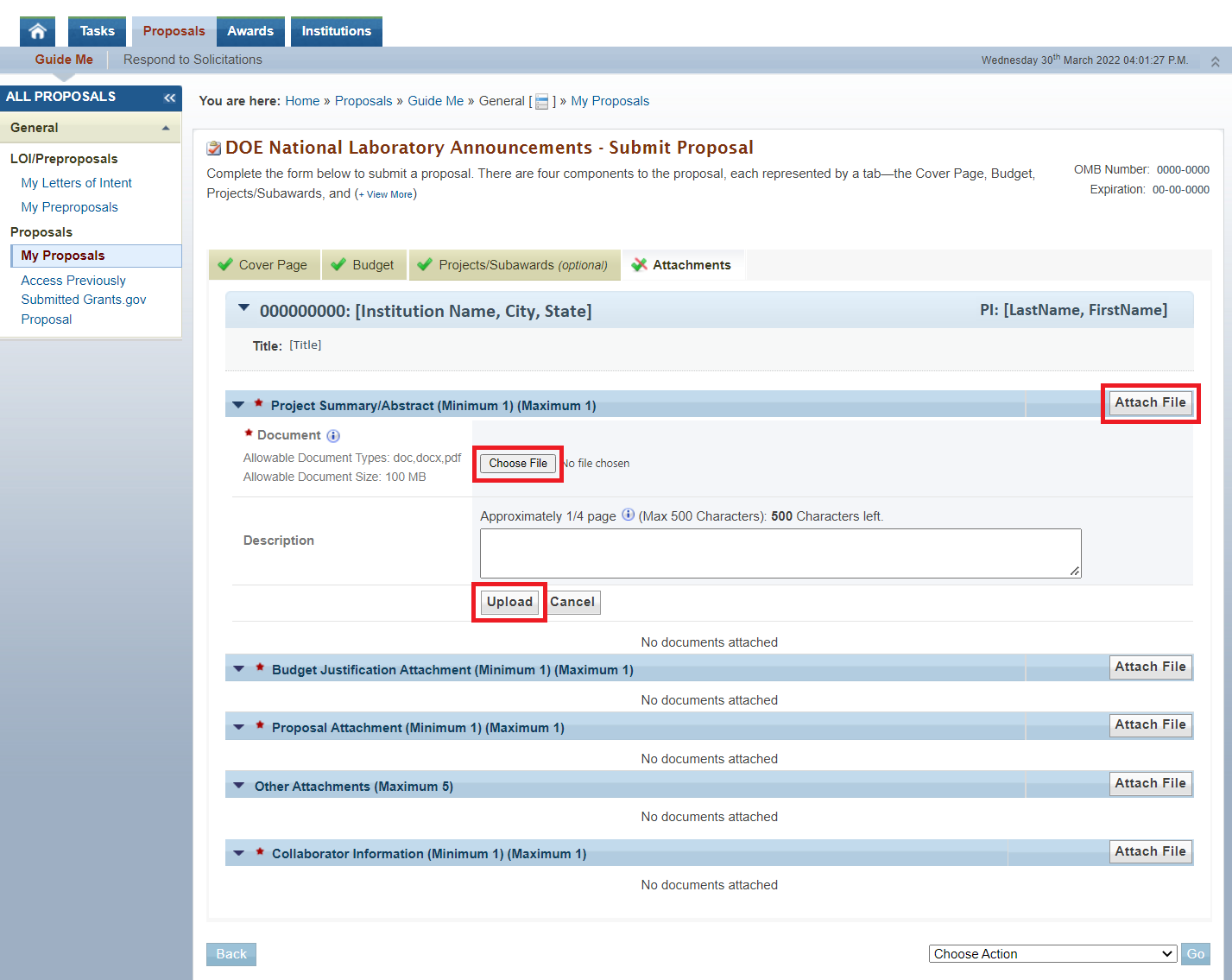
Figure 17. DOE National Laboratory Announcements – Submit Proposal, Attachments
...
4. When you have finished attaching the required documents, click the the Choose Action dropdown, select the appropriate Save option, and click Go (Figure 18).
...