
1 Introduction
PAMS gives users the opportunity submit and manage proposals and awards processed by the Department of Energy (DOE) Office of Science (SC) in a centralized location. Before a user can submit or access proposal and award data in PAMS, the user must be registered to an institution.
The purpose of this document is to provide step-by-step instructions for users to follow to
How do I register to an institution in PAMS?
After you are authorized to use PAMS, you must register to an institution in PAMS if you wish to submit proposals or work with previous submissions.
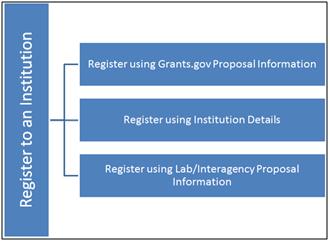
Registering to an institution can be conducted using one of the following options:
- Register using Grants.gov Proposal Information
- Register using Institution Details
- Register using Lab/Interagency Proposal Information
Register Using Grants.Gov Proposal Information
After creating your user account, you can register to an institution using Grants.Gov proposal information. Click the My institution has submitted a proposal in Grants.gov. I am here to register as an SRO/PI/POC link.
I Want to Register as a PI for the Institution
The Principal Investigator (PI) is responsible for:
- Composing and submitting proposals in response to solicitations;
- Overseeing the research activities supported by DOE awards;
- Managing award funding detail;
- Providing progress reports for funded activities as designated in the DOE award package.
Follow these steps to register as PI:
- Enter Proposal ID and Email.
- Choose the PI role on the Register to Institution screen. Click the Register button.
- If the first name and last name in your profile do not match the first name and last name on the SF-424, you will be prompted to enter the first name and last name from the proposal’s SF-424. If applicable, click Registerafter entering them.
- Note: The proposal ID and the email address that you enter must match the proposal ID and email address listed on the SF-424 form of the proposal. Only one PI can register to the institution using the Grants.gov proposal information.
- Upon successful verification, you will be navigated to the Institutions Tab in the application.
At this point of time, you are registered as a PI for your specific institution. Additionally, you have been granted access to view the proposal that you had specified when you registered to the institution.
I want to register as an SRO to the institution
The SRO role is usually held by a representative from the Sponsored Research Office (SRO). The SRO is typically responsible for submitting proposals in response to DOE Funding Opportunity Announcements, receiving the award funding, and managing the award budget. In some institutions, the office represented is called the Business Office (BO) or Administrative Office (AO).
Follow these steps to register as SRO/AO/BO:
- Enter Proposal ID and Email.
- Choose the SRO/AO/BO role on the Register to Institution screen. Click the Register button.
- If the first name and last name in your profile do not match the first name and last name of the SRO on the SF-424, you will be prompted to input first name and last name as listed on the SF-424.
- If the institution you wish to register to does not have an administrator in PAMS, you will be prompted to register as an administrator for the institution.
At this point you will be presented with the following 3 options:
- Register to the institution as an Administrator and SRO
- Invite another user from the institution to register as an Administrator SRO
- Continue with the registration process and be registered as an SRO only

- If you choose to register as an administrator, click on the checkbox to accept the agreement. Then click Continue. This will route you to the Institution tab.
- If you choose to invite another user to register as an administrator for the institution, provide all mandatory inputs on the email screen and click Continue. This will route you to the Institution tab.
- If you choose to continue with simple registration, you will be routed to the Institution tab.
At this point of time, you will be registered to the institution as an SRO. Depending on whether you chose to be the administrator or not, you will also have the Manage Institution and Manage Users privileges. Once you are registered as an SRO to the institution, you will have view and manage peer access to the Grants.gov proposal. Only one SRO can register to the institution using the Grants.gov Proposal information.
I want to register as a Point of Contact for the Institution
- Choose the Point of Contact (POC) role on the Register to Institution screen. Click the Registerbutton.
- Note: The Proposal ID and the email need to match the proposal ID and email from the SF-424 form of the proposal.
- If the first name and last name in your profile do not match the first name and last name on the SF-424, you will be prompted to input the first name and last name as listed on the SF-424.
- Upon successful registration, you will be navigated to the Institutions tab in PAMS.
At this point of time you are registered to the institution as a POC. Additionally, you will be able to view the proposal. Only one POC can register to the institution using the Grants.gov proposal information.
Register Using Institution Information
I want to register as an SRO user to the institution
- To register to an institution using institution information click on the I know my institution and I am here to register to the institution link.
- Input all mandatory information on the screen and click the Search button.
- If the institution you wish to register to does not have an administrator in PAMS, you will be prompted to register as an administrator for the institution.
At this point you will be presented with the following 3 options:
- Register to the institution as an Administrator and SRO
- Invite another user from the institution to register as an Administrator SRO
- Continue with the registration process and be registered as an SRO only
- If you choose to register as an administrator, click on the checkbox to accept the agreement. Then click Continue. This will route you to the Identify and Register to Institution screen.
- If you choose to invite another user to register as an administrator to the institution, provide all mandatory inputs on the email screen and click Continue. This will route you to the Identify and Register to Institution screen.
- If you choose to continue with registration, you will be routed to the Identify and Register to Institution screen.
Identify and Register to Institution
...
.
2 Prerequisites
Before a user with an existing PAMS account can register to an institution, the following criterion must be met:
- The user has an active, external PAMS account.
3 Registering to an Institution
Use the following steps to register to an institution in PAMS.
1. Log in to your external PAMS account at (Figure 1): https://pamspublic.science.energy.gov/webpamsepsexternal/login.aspx
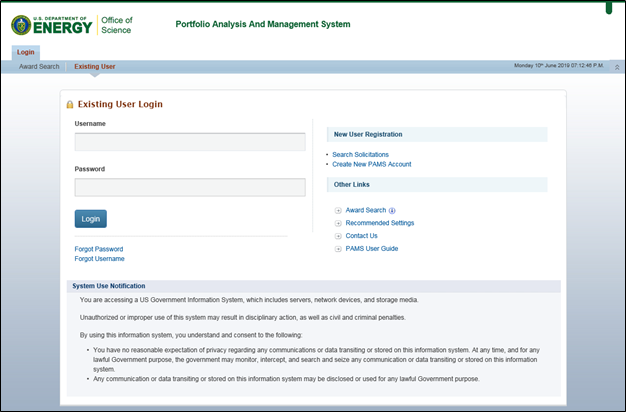
Figure 1. PAMS External Login
2. Select the Institutions tab (Figure 2).
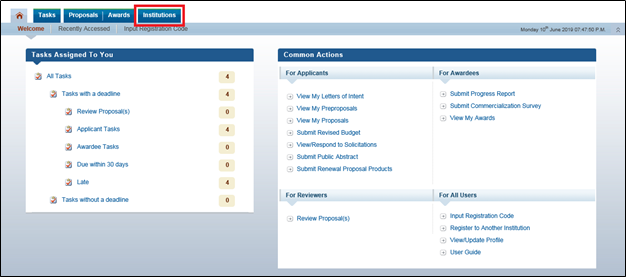
Figure 2. SRO/BO/AO Homepage – Institutions
3. PAMS will load the “Register to Institution” page. Select Option 2: I know my institution and I am here to register to the institution (Figure 3).
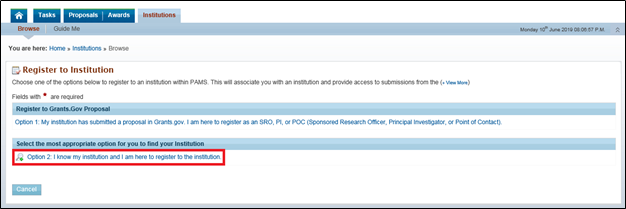
Figure 3. Register to Institution, Option 2
4. PAMS will expand Option 2 (Figure 4). You must complete the required fields in order to execute the search. Refer to the table below to complete the required fields.
Required Fields
Element | Description |
Institution Name like | Enter the name of the institution to which you would like to register. |
Choose Role | Use the radio buttons to select the role that applies to your position with the institution: · SRO/BO/AO (Sponsored Research Officer/Business Officer/Administrative Officer) · PI (Principal Investigator) · Other (Point of Contact) |
5. Click Search in the bottom left corner of the screen to execute your search.
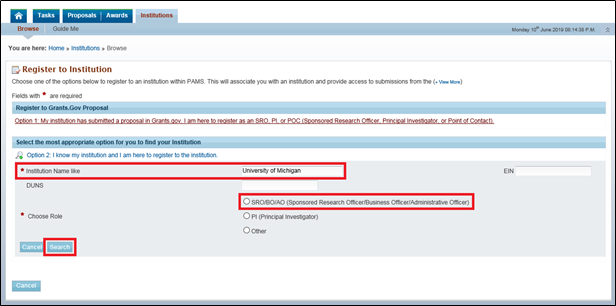
Figure 4. Register to Institution – Institution Name, Choose Role, Search
6. PAMS will return a list of search results. Browse the list or use the advanced search above the grid to find the institution you would like to register to in PAMS. Once you have found the institution, select Add me to this institution from the Actions menu in the Options column. (Figure 5)
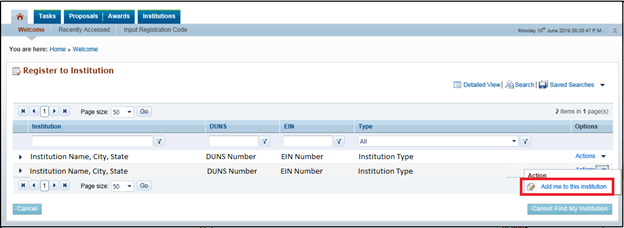
Figure 5. Register to Institution – Add me to this institution
|
|

7. PAMS will display a Success message confirming that you have registered to the institution, for the role you selected, successfully.
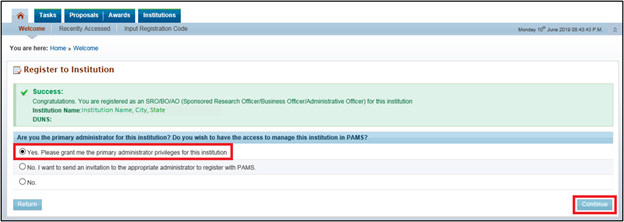
Figure 6. Register to Institution – Success, Yes. Please grant me the primary administrator privileges for this institution
| If the institution has a designated primary administrator (Admin SRO), PAMS will not display the “Are you the primary administrator for this institution? Do you wish to have access to manage this institution in PAMS?” section, and Steps 9-11 below will not apply to you. Now that you are registered to the institution in PAMS, you can request additional privileges and access. |

8. If you selected SRO/BO/AO and the institution does not presently have a primary administrator identified, PAMS will ask you if you are the primary administrator for the institution and whether you would like access to manage the institution in PAMS. If you are the primary administrator, select “Yes. Please grant me the primary administrator privileges for this institution”. If you are not the primary administrator for the institution, select “No. I want to send an invitation to the appropriate administrator to register with PAMS.” or “No.”
9. Once you have made a selection, click Continue in the bottom right corner of the page (Figure 6).
10. PAMS will prompt you to confirm your role, as the primary administrator, again. Select “I am the designated primary administrator to manage this institution in PAMS. I certify that all the information provided by me on this form is true and correct.” and click Save and Continue in the bottom right corner of the page. (Figure 7)
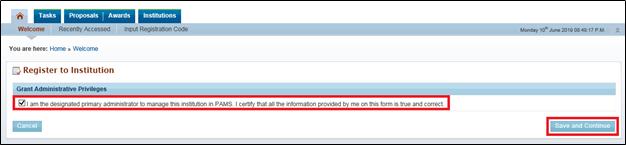
Figure 7. Register to Institution – I am the designed primary administrator manage this institution in PAMS. I certify that all the information provided by me on this form is true and correct.
11. PAMS will return you to the “Institutions – List” page, and display a Success message confirming that you have been registered to the institution as an Administrator successfully (Figure 8). Additionally, PAMS will display the institution you have just registered to in the grid.
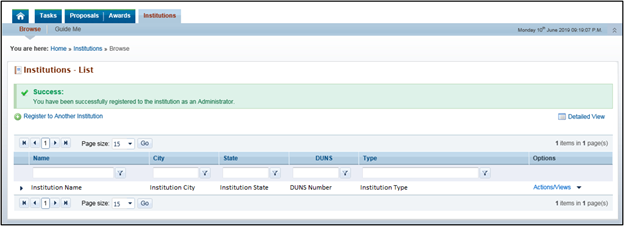
Figure 8. Institution – List, Success
...
- Provide mandatory inputs to create the institution. Then click the Submit button to create a new institution in PAMS.
...
At this point of time, you are registered to the institution as an SRO user. Based on your search results you may or may not have created a new institution in PAMS.
I want to Register as a PI (or Other Non-SRO User) to the Institution
- To register to an institution using institution information, click the I know my institution and I am here to register to the institution link.
- Input all mandatory information on the screen and click the Search button.
- If you find your institution listed in the grid, click on the Action link followed by Add me to this Institution.
- If you do not find your institution listed in the grid, you may want to narrow your search based on the city and state.
- If you still do not find your institution and have to create a new institution, click the Cannot Find My Institution button.
- Provide mandatory inputs to create the institution. Then click the Submit button to create a new institution in PAMS.
- Upon successful registration, you will be navigated to the Institutions tab in the application.
At this point of time, you are registered to the institution as a PI/Other role user. Based on your search results, you may or may not have created a new institution in PAMS.