
...
1. On the PAMS Login page, click the Search Solicitations link under the New User Registration "Other Links" section in the column on the right (Figure 1).
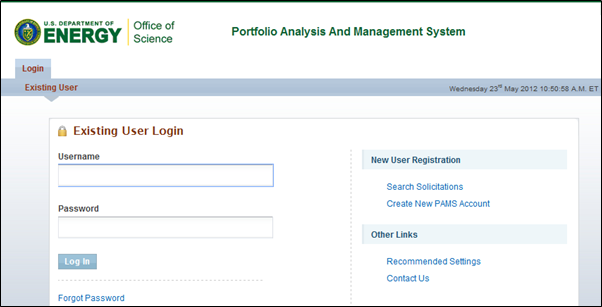
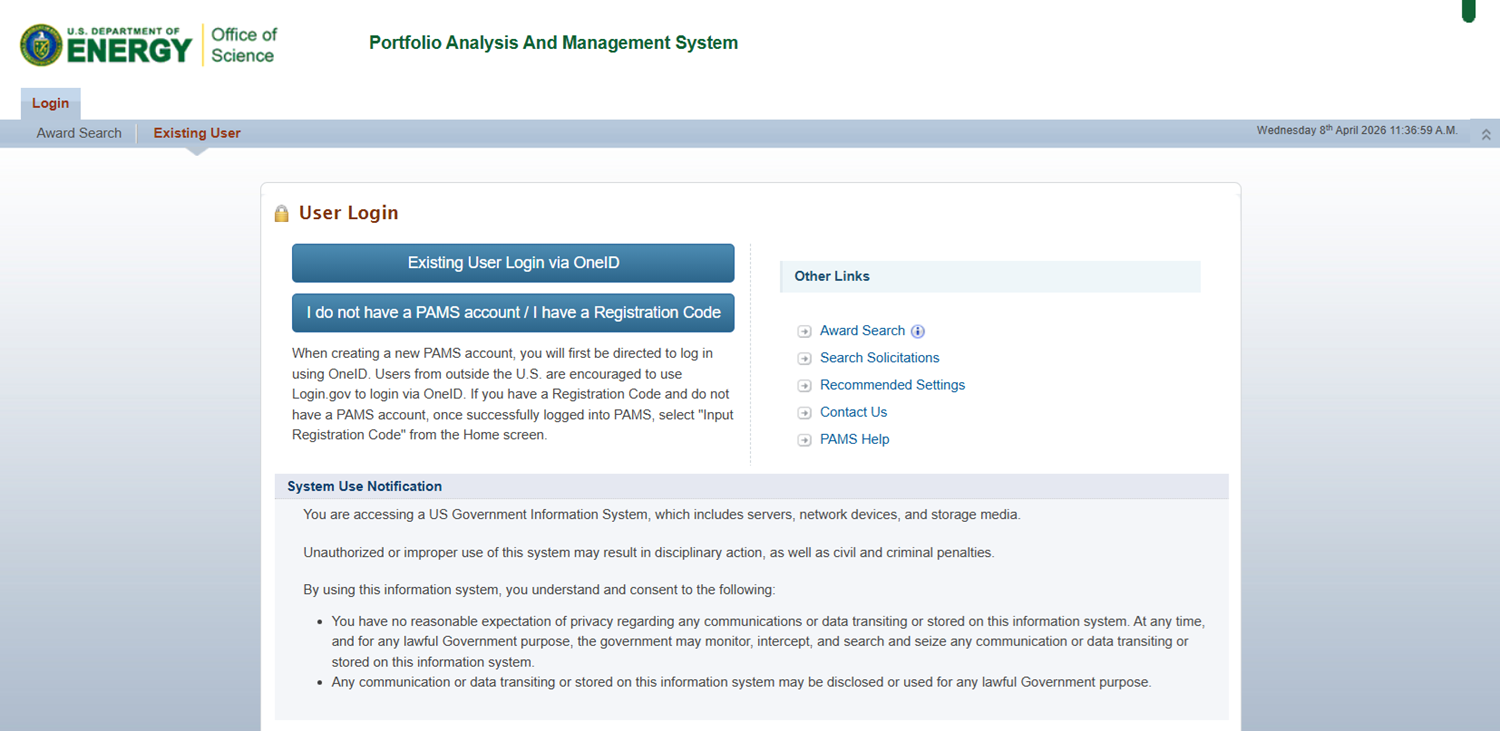
Figure 1. PAMS Login Page – Search Solicitations
...
3. PAMS will display a list of active solicitations for you to choose from. Click the the Actions/Views dropdown for the solicitation you would like to respond to, and select Submit Letter of Intent (Figure 3).
...
1. Log in to your PAMS account at https://pamspublic.science.energy.gov/.
| For guidance on logging in, refer to Logging In. |

2. Click the Proposals tab. You can view FOAs by clicking the the View Funding Opportunity Announcements link or Lab Announcements by clicking the View DOE National Laboratory Announcements link (Figure 2).
...
2. If the user you wish to assign appears in the generated list, click the the Actions/Views link and then Select PI (Figure 7).
...
3. If the user you wish to assign as the PI is not listed, click the the Invite PI link located at the top of the page. This will allow you to send your desired PI an invitation to register to PAMS. Once the individual creates an account and registers to your institution, the new user will appear in the list of registered users. You may then select the user as the PI for your LOI.
...
Figure 8. Submit Letter of Intent (LOI) Page – Change PI
| If a Solicitation is marked as an Early Career Research Program, PAMS displays the following additional fields below the "Address" field in the PI Information section:
The "Is the PI PECASE eligible?" field is required. Complete the field(s) before moving on to the next section. |

3.2.3 Project Information
...
2. Once you have selected a document, click click Upload to upload the file to PAMS.
...
2. PAMS will expand the section. Click Click Browse to search for the file you would like to attach.
...
|
|
2. You will receive a a Success message indicating that your submission was successful (Figure 14).
...