
...
1. Log in to your external PAMS account at (Figure 1): https://pamspublic.science.energy.gov/webpamsepsexternal/login.aspx.
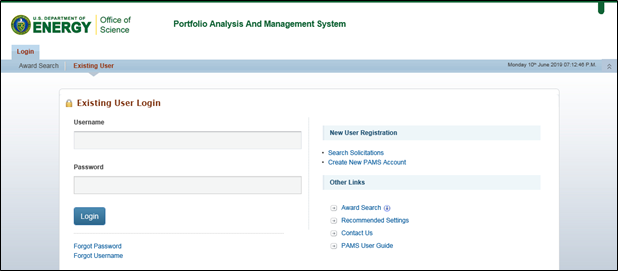
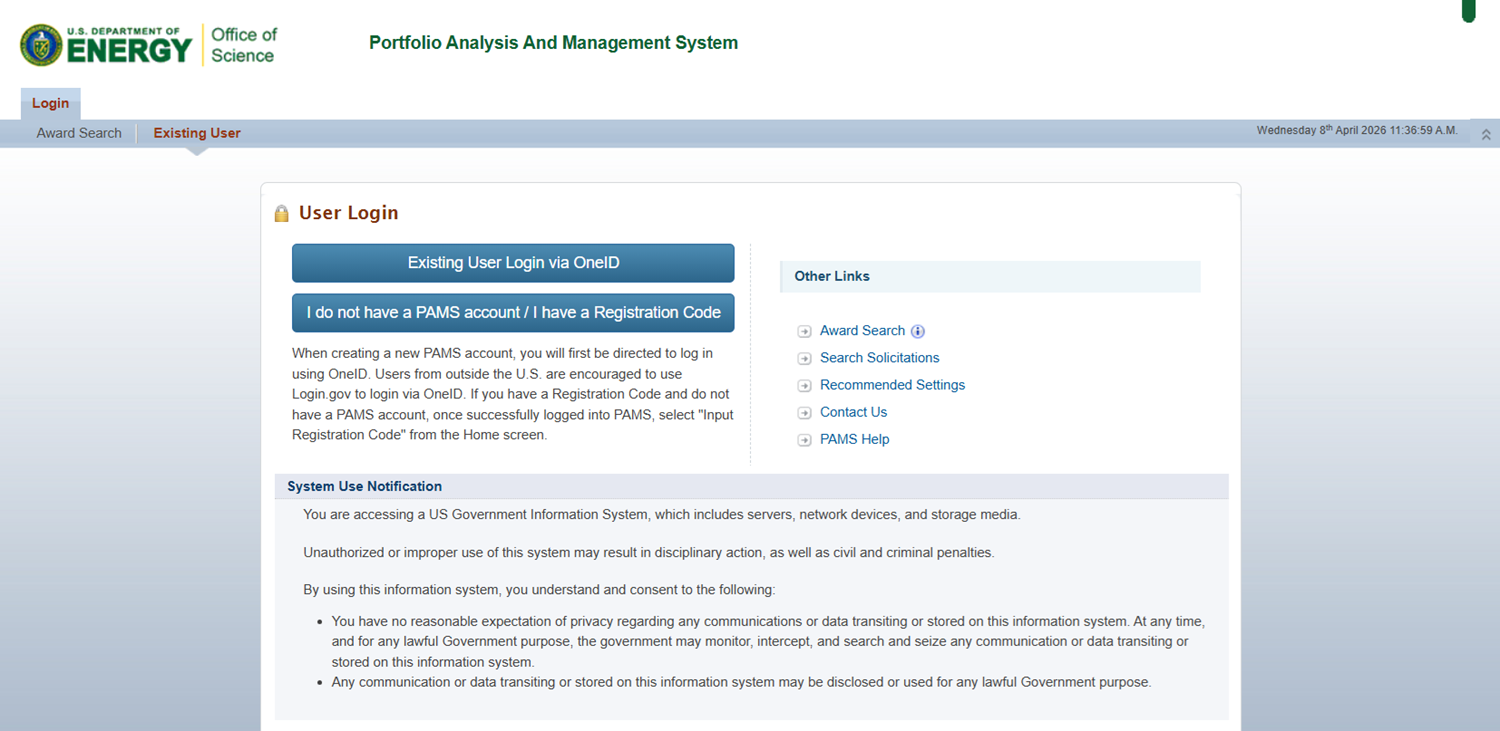
Figure 1. PAMS External Login
| For guidance on logging in, refer to Logging In. |

2. From the PAMS Homepage, click click View/Respond to Solicitations and skip to step 4 OR Navigate to the “Proposals” tab (Figure 2).
...
4. PAMS will load the “DOE National Laboratory Announcements – List” page, which displays a list of all open and closed DOE National Laboratory Announcements. Browse the list or use the filters or advanced search above the grid to locate the DOE National Laboratory Announcement you would like to submit to. Once you have selected a DOE National Laboratory Announcement, click click Submit Proposal in the Action/Views menu in the Options column. (Figure 4)
...
Element | Description |
Institution | PAMS will auto-populate the name of the National Laboratory to which you are registered (Figure 5). |
Principal Investigator Information | Select a Principal Investigator (PI) by clicking Select PI on the right side of the section header (Figure 5). PAMS will load the “Select PI” page (Figure 8). Browse the list or use the filters or advanced search above the grid to locate the PI you would like to select. Once you have chosen a PI, click Select PI in the Action menu in the Options column. PAMS will return you to the “DOE National Laboratory Announcements – Submit Proposal” page, and populate the remaining fields in the Principal Investigator Information section. |
Sponsored Research Official/Business Official/Administrative Official (SRO/BO/AO) Information | Select a Sponsored Research Official/Business Official/Administrative Official (SRO/BO/AO) by clicking Select SRO/BO/AO on the right side of the section header (Figure 5). PAMS will load the “Select SRO/BO/AO” page (Figure 9). Browse the list or use the filters or advanced search above the grid to locate the SRO you would like to select. Once you have chosen an SRO, click Select SRO/BO/AO in the Action menu in the Options column. PAMS will return you to the “DOE National Laboratory Announcements – Submit Proposal” page, and populate the remaining fields in the Sponsored Research Official/Business Official/Administrative Official (SRO/BO/AO) section. |
Proposal Title | Enter a title for the proposal (Figure 6). |
Program Manager | Click the dropdown, and select a Program Manager (Figure 6). |
Proposal Type | Click the dropdown, and select a Proposal Type (Figure 6). |
Award Number | Enter the number of the associated Award. NOTE: This field is available to and required for Renewal Proposals only. |
1. Are Human Subjects Involved? | Select the “Yes” or “No” radio button (Figure 6). NOTE: If you select “Yes”, you must complete the “1a. If Yes, is the project exempt from Federal regulations?” subsection. |
2. Are vertebrate animals used? | Select the “Yes” or “No” radio button (Figure 7). NOTE: If you select “Yes”, you must complete the “2a. If Yes, is the IACUC review pending?” subsection. |
...
Figure 5. DOE National Laboratory Announcements – Submit Proposal, Cover Page 1
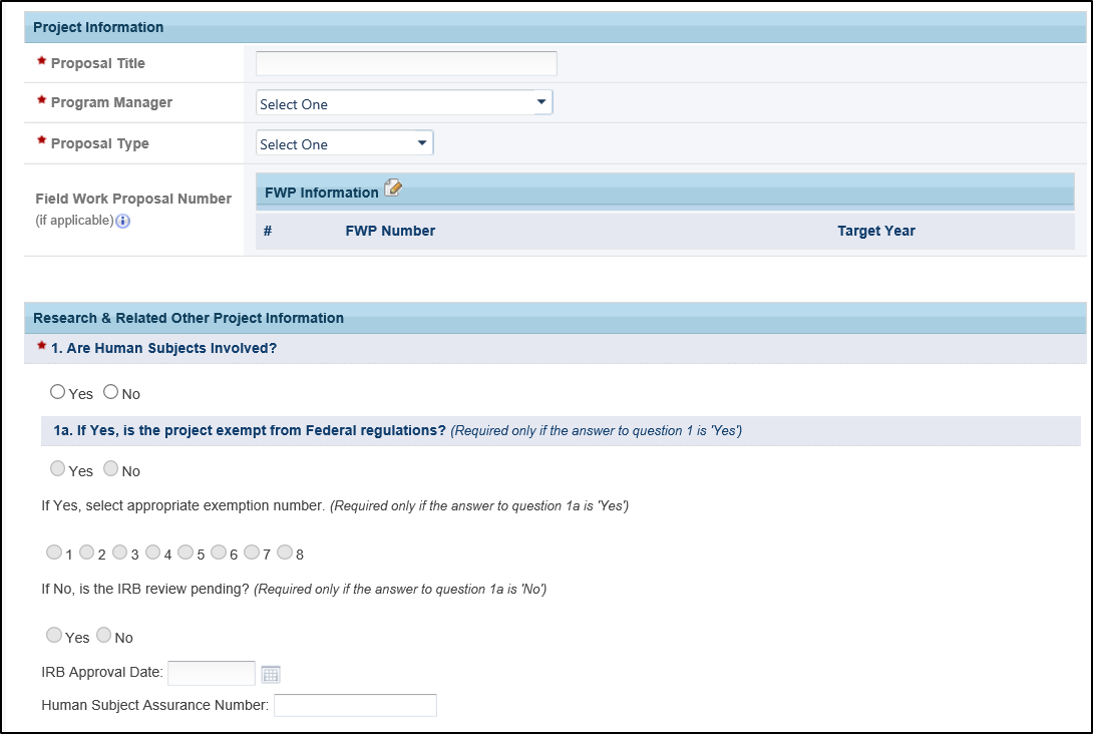
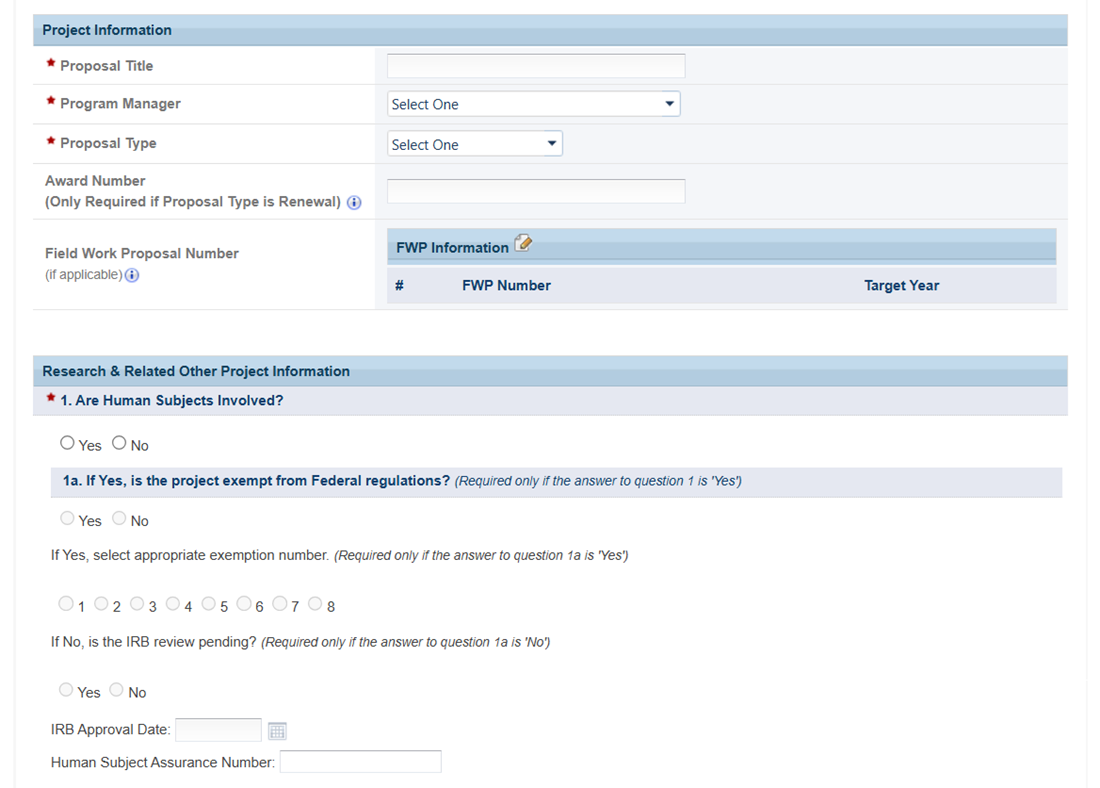
Figure 6. DOE National Laboratory Announcements – Submit Proposal, Cover Page 2
...
2. Once you have completed all of the required fields, click the the Choose Action dropdown in the bottom right corner of the page, select “Save Cover Page and Continue to Next Section”, and click Go (Figure 10).
...
| If the section does not apply to your budget, leave it blank. |

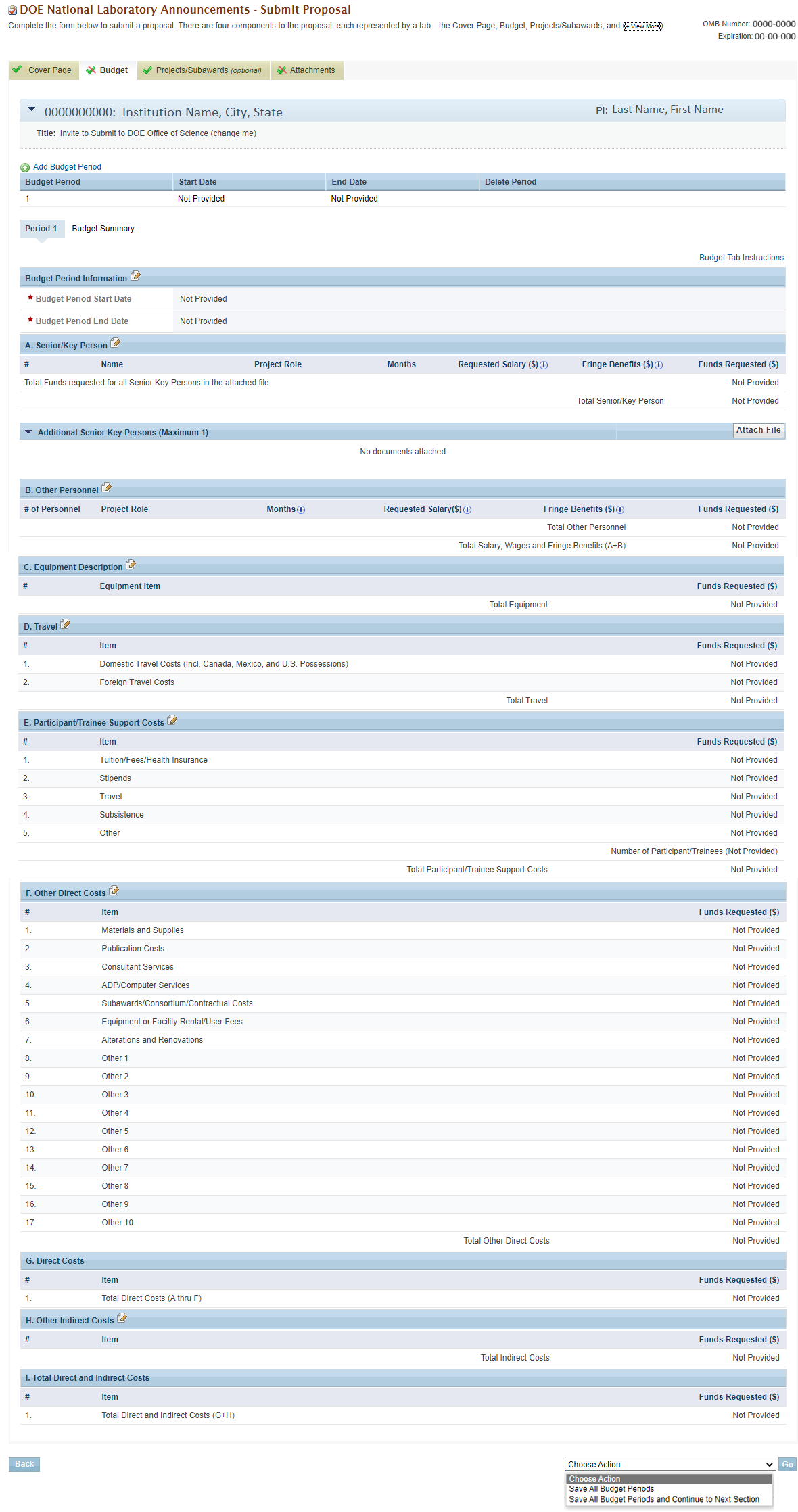
Figure 11. DOE National Laboratory Announcements – Budget
...
2. Once you have completed all of the required and necessary fields, click the the Choose Action dropdown in the bottom right corner of the page, select “Save Budget and Continue to Next Section”, and click Go (Figure 13). PAMS will save the Budget tab, and navigate you to the Subawards tab.
...
Figure 14. DOE National Laboratory Announcements – Submit Proposal, Subawards (optional), Add Project/Subaward
2. Click the the Edit icon for each section of the budget that needs to be updated, and then click Continue in that section to save your edits.
...
3. Once you have completed all of the required fields, click the the Choose Action dropdown in the bottom right corner of the page, select “Save Subawards and Continue to Next Section”, and click Go (Figure 16). When you have finished providing the necessary information, choose the appropriate save option from the Choose Action dropdown, and click Go to continue to the next section.
...
1. To attach a required document, click click Attach File in the header. This will expand the section (Figure 17).
...
3. Once you have selected a file, click Upload to attach the file to the proposal.
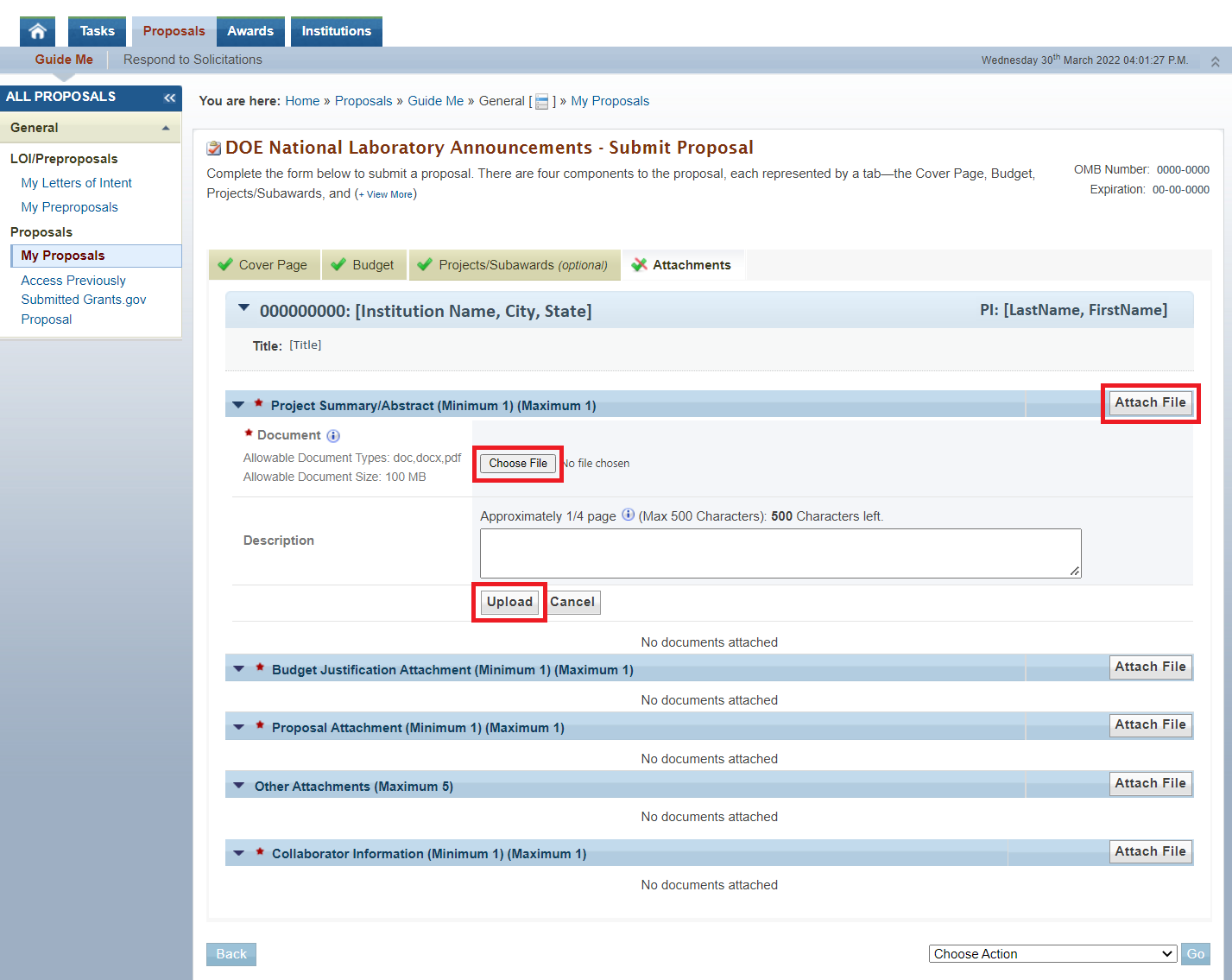
Figure 17. DOE National Laboratory Announcements – Submit Proposal, Attachments
...
4. When you have finished attaching the required documents, click the the Choose Action dropdown, select the appropriate Save option, and click Go (Figure 18).
...