
...
Figure 1. PAMS Email Notifications – Existing SRO/BO/AO Commercialization Survey Task
2. Navigate to the PAMS login page and log in to your account.
| For guidance on logging in, refer to Logging In. |

3. Click On the Guide Me page, click the Tasks tab to go to the Pending Tasks – List page (Figure 2). OR From any PAMS page, click the Commercialization Survey link in the left navigation menu to go to the Commercialization Survey – List page (Figure 3).
...
3. From either List page, find the Submit Commercialization Survey task you want and click the Start Survey link (Figure 2, Figure 3). If necessary, click the Search link on the right above the grid to find a specific Commercialization Survey task to work on.
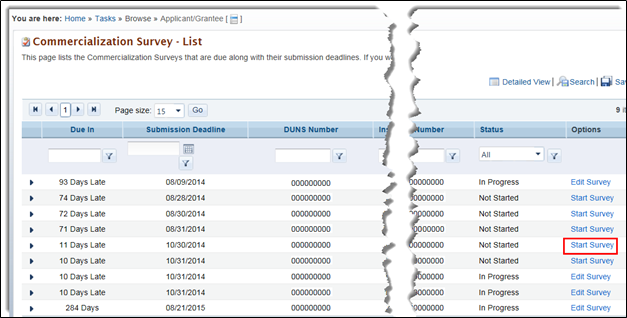
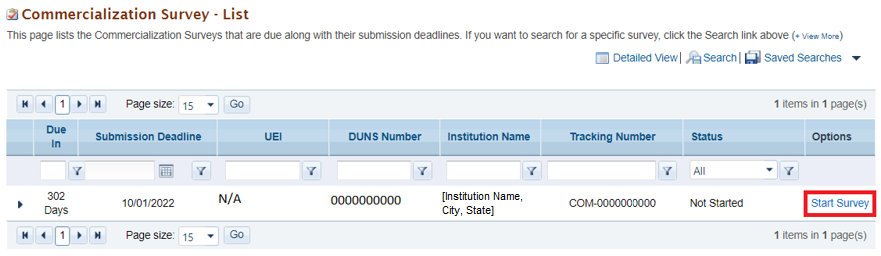
Figure 3. Commercialization Survey – List Page, Start Survey
...
Figure 4. PAMS Email Notifications – SRO/BO/AO Does Not Have an Existing Account
2. Enter the registration code on the Verify Registration Code page, and click Verify (Figure 5).

Figure 5. Verify Registration Code Page
3. Complete the account creation process. (Step-by-step instructions for account creation can be found in the External User – Create Account training module.)
4. Begin at Step 2 in section 1.1 Existing Account to access the Commercialization Survey task after creating the accountThe user will be navigated to the PAMS login page. For guidance on creating a PAMS account with a registration code, refer to Create/Update a User Account.
3.2 General Information Section
...
1. The Commercialization Survey – Status page displays the status of the General Information and Awards sections in both the left navigation menu and in the Commercialization Survey Status section of the page itself (Figure 65).
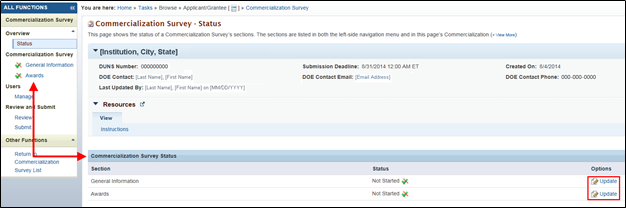
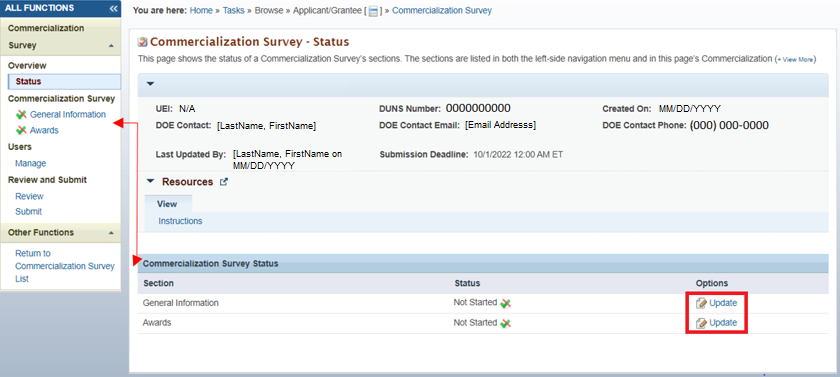
Figure 65. Commercialization Survey – Status Page, Commercialization Survey Status, Update
2. Click the Update link to navigate to the Commercialization Survey – General Information page.
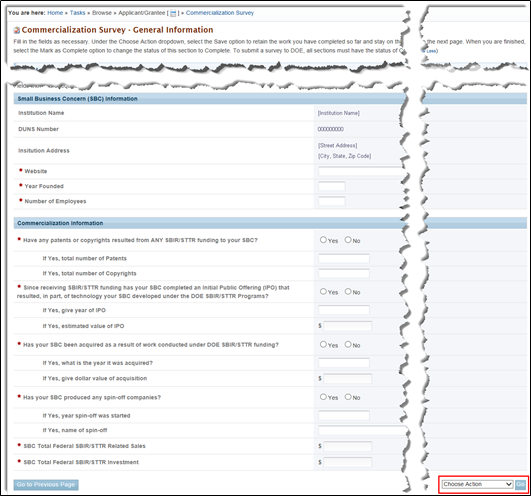
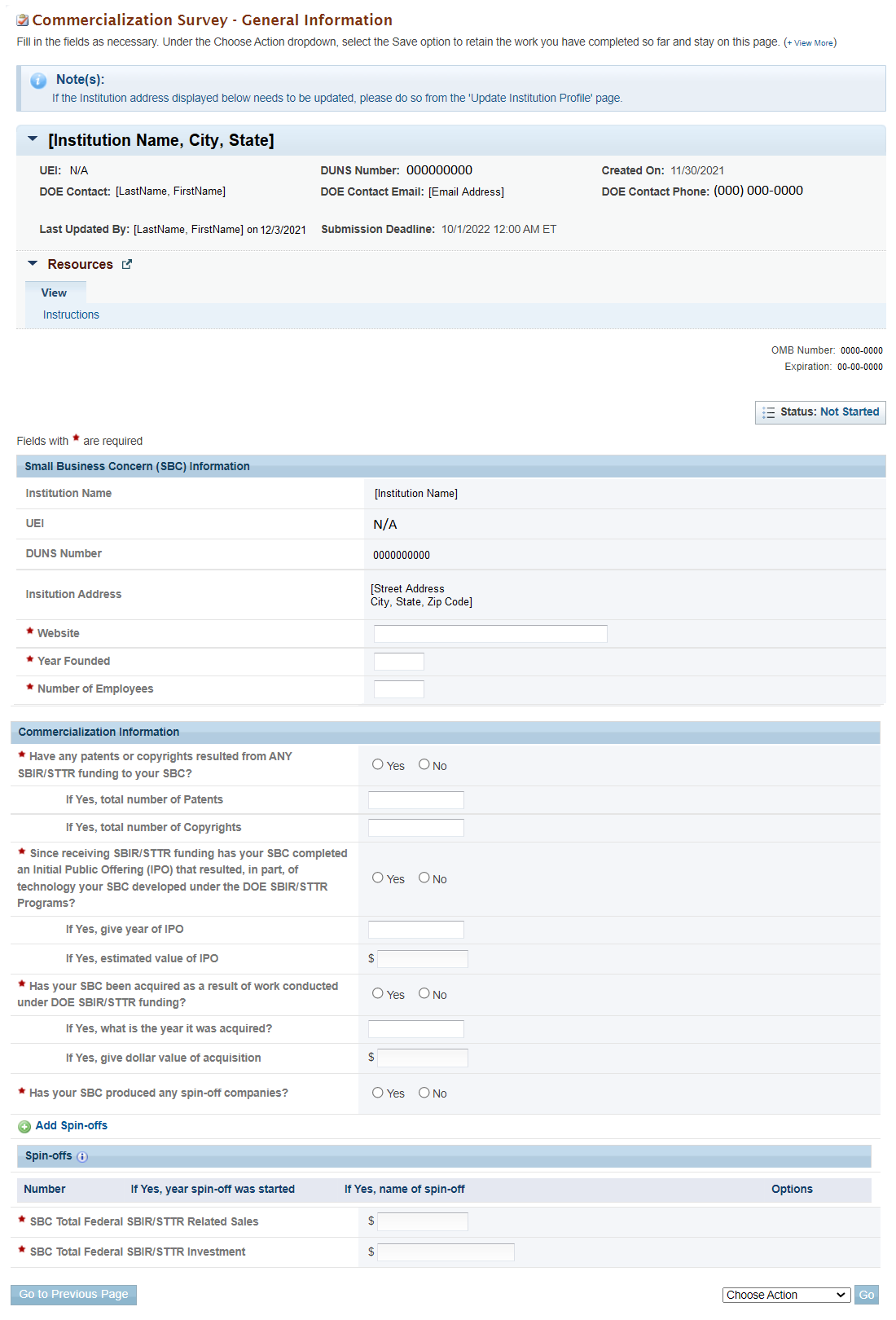
Figure 76. Commercialization Survey – General Information Page
3. The first three fields under the Small Business Concern (SBC) Information section are prepopulated from the Institution Profile in PAMS (Figure 76).
4. Refer to the table below to complete the required fields on the rest of the Commercialization Survey – General Information page.
...
5. When finished, click the Choose Action dropdown and select either Save, Save and Continue, or Mark as Complete. When you have made your selection, click the Go button to be taken to the Commercialization Survey – Awards page (Figure 87).
6. Click the Go to Previous Page button to return to the Commercialization Survey – Status page.
...
1. Clicking the Commercialization Survey Status Update link on the Commercialization Survey – Status page (Figure 65) takes you to the Commercialization Survey – Awards page (Figure 87).
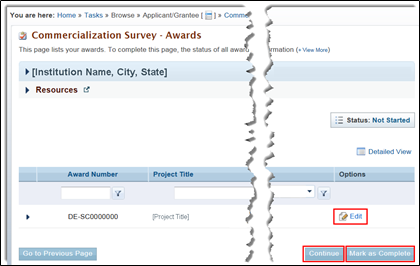
Figure 87. Commercialization Survey – Awards Page, Edit, Continue, Mark as Complete
2. Click Edit in the Options column to go to the Commercialization Survey – Edit Award page.
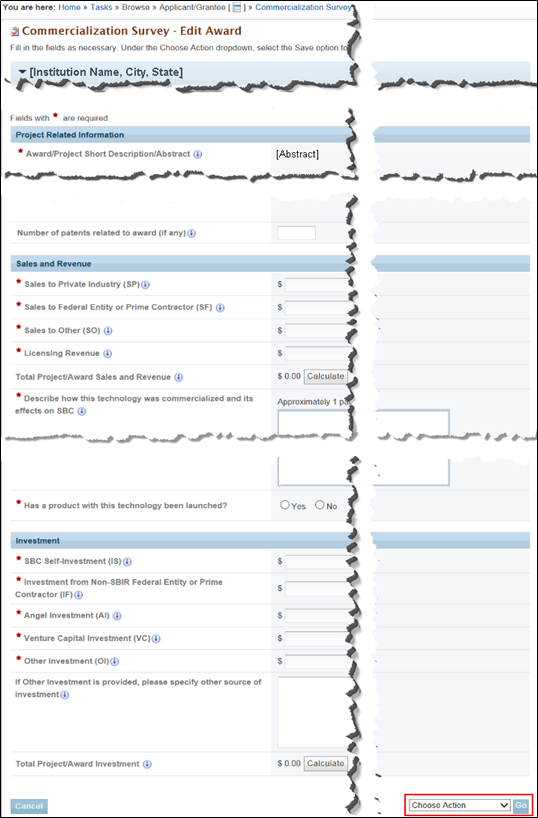
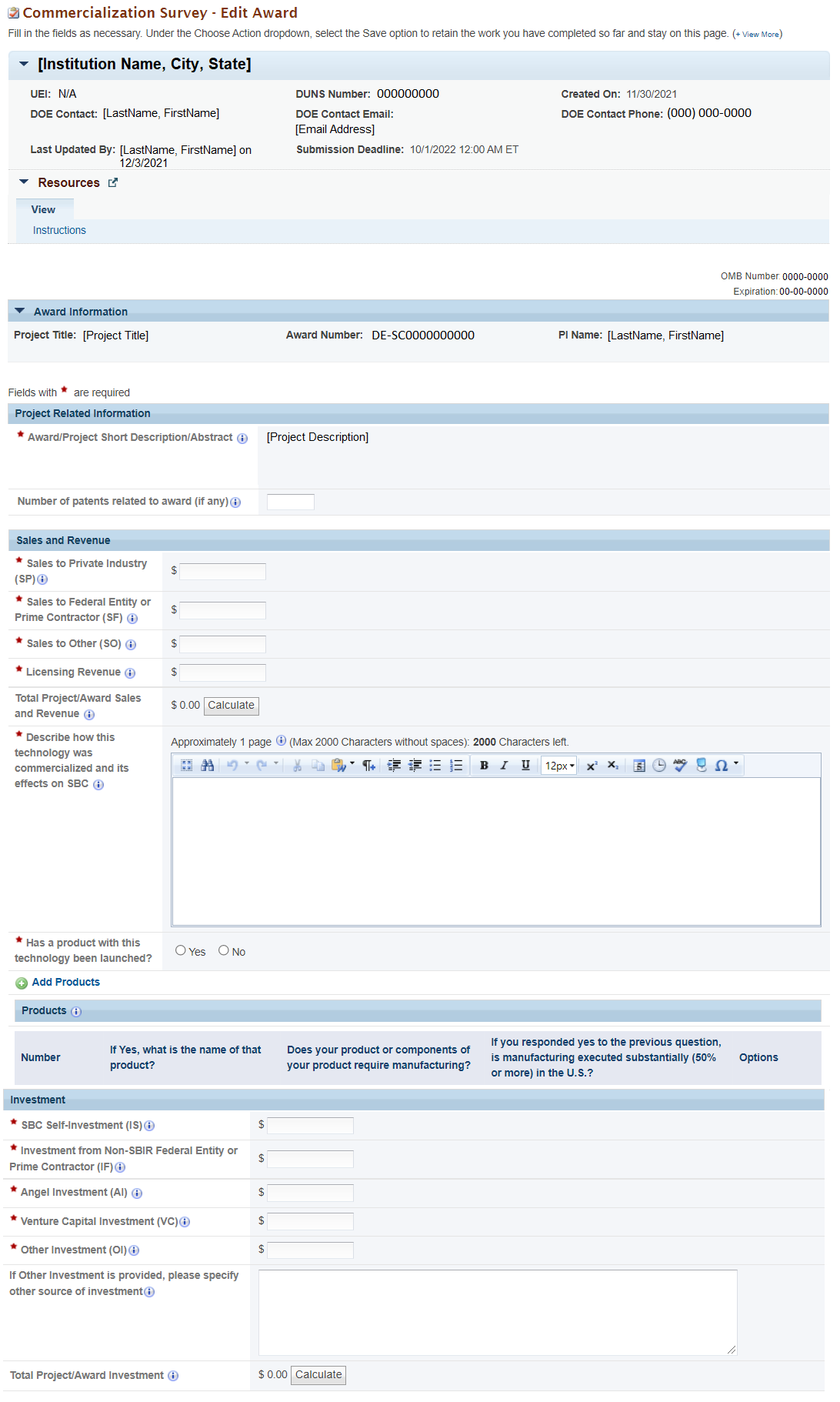
Figure 98. Commercialization Survey – Edit Award Page
...
2. Find the Submit Commercialization Survey task, and click Edit Survey in the Options column.
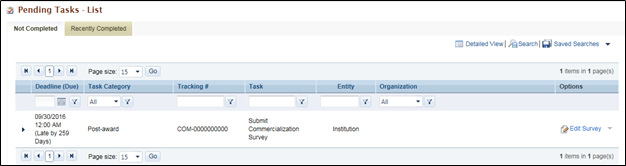
Figure 109. Pending Tasks – List Page
...
1. Once all of the sections are marked as complete, click Submit in the bottom right corner (Figure 1110).
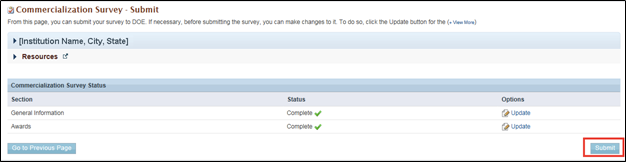
Figure 1110. Commercialization Survey – Submit Page
...