
...
1. On the PAMS Login page, click the Search Solicitations link under the New User Registration "Other Links" section in the column on the right (Figure 1).
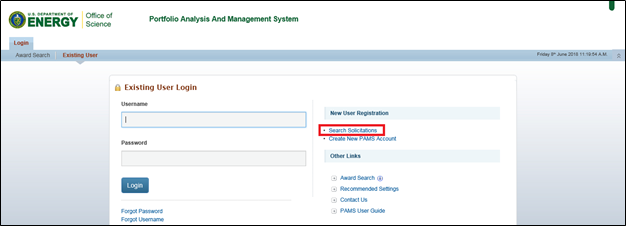
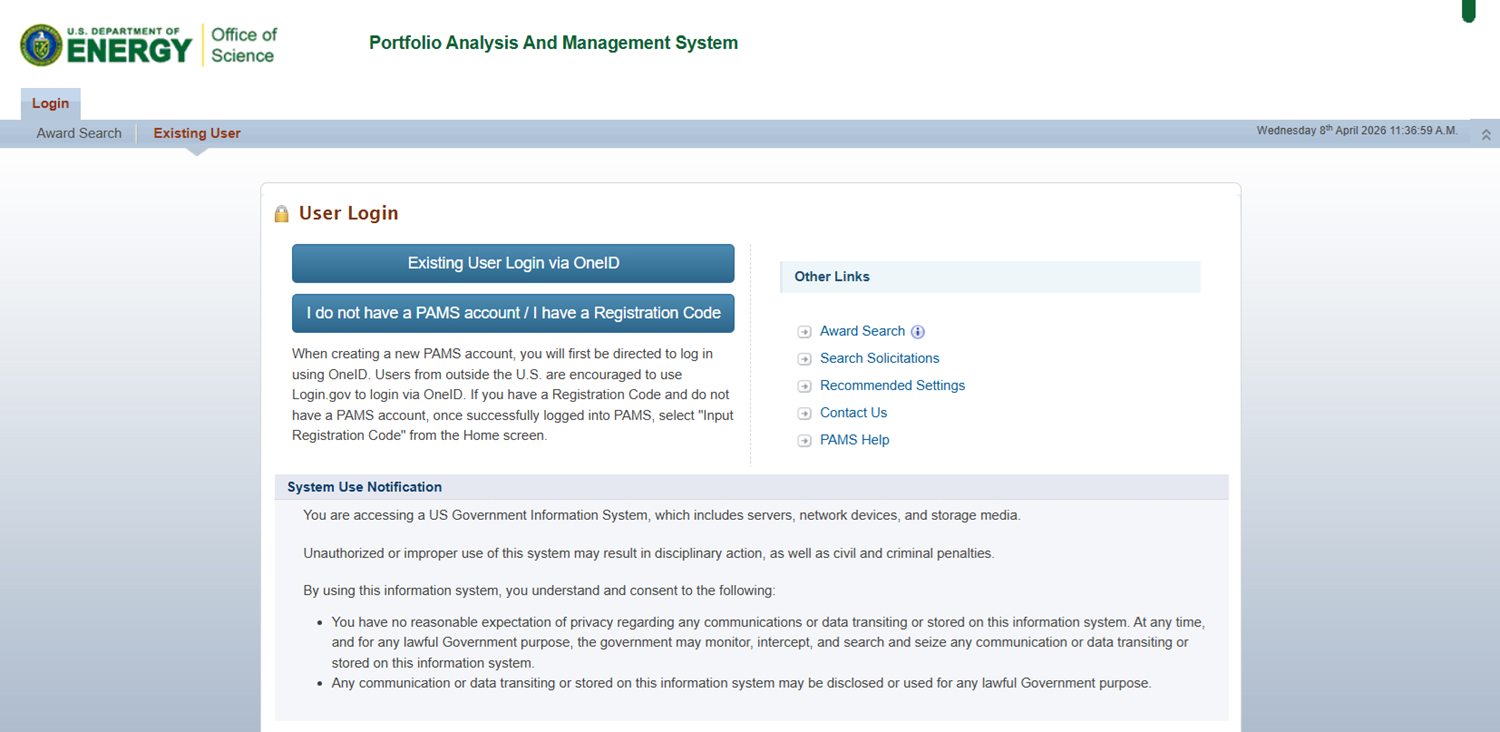
Figure 1. PAMS Login Page – Search Solicitations
...
4. Click the Actions/Views dropdown for the solicitation you would like to respond to, and select Submit Letter of Intent(Figure 4).
Figure 4. Funding Opportunity Announcements – List – Submit Letter of Intent
| If your institution does not have a user with the “Submit to DOE” privilege, PAMS will display the following Note at the top of the Submit Letter of Intent (LOI) page: "There are currently no users with Submit to DOE privilege at your institution. If one is not identified at the time of submission of this Preproposal, the PAMS Helpdesk will be notified and will seek to identify the appropriate institutional contact. The PAMS Helpdesk can be reached at (855) 818-1846 (toll-free number) or (301)-903-9610 (Available 9:00 AM – 5:30 PM Eastern Time (ET) Monday-Friday)." |

3.1.2 After Login
Use the following steps to access a list of solicitations after logging in to PAMS.
1. Log in to your PAMS account at https://pamspublic.science.energy.gov/
| For guidance on logging in, refer to Logging In. |
2. Navigate to the Proposals tab, and click click View Funding Opportunity Announcements (Figure 2).
...
An LOI has six sections: Solicitation Information, PI Information, SRO/BO/AO Information, Subcontractor/Consultant Information, Project Information, and Letter of Intent (Figure 54).
Use the following steps to create and complete an SBIR LOI.
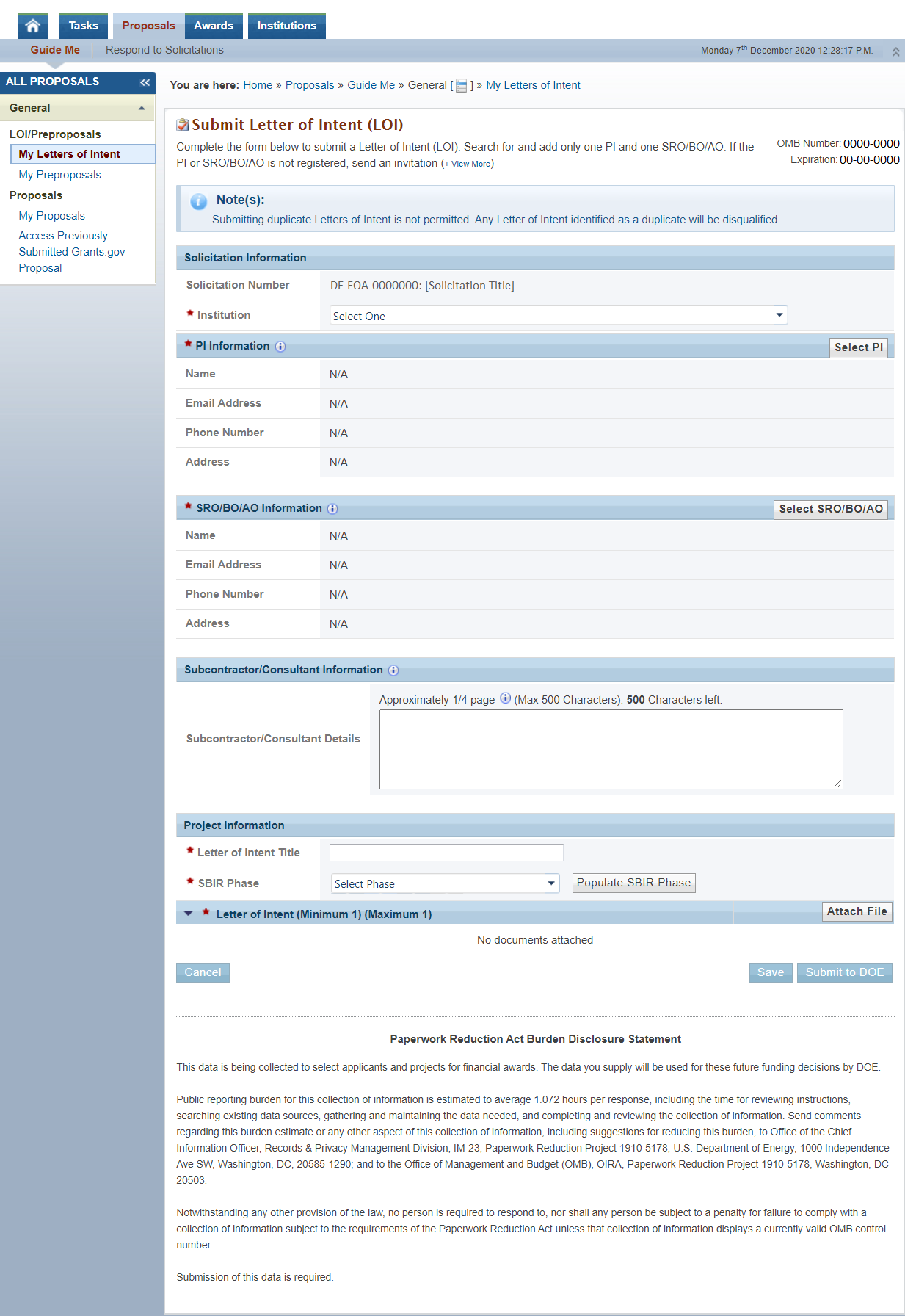
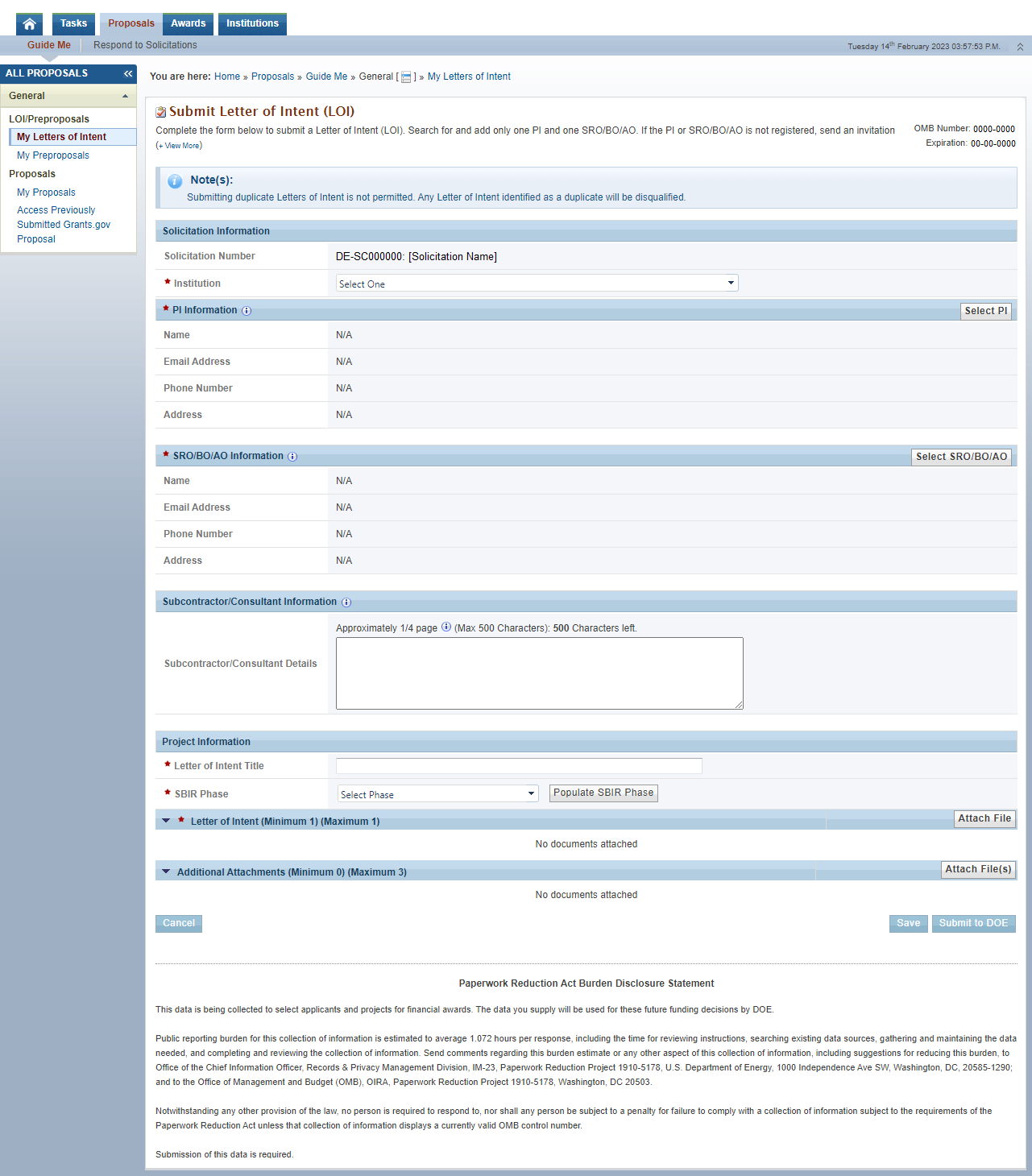
Figure 54. Submit Letter of Intent (LOI)
...
1. The Solicitation Number field will prepopulate with the number of the solicitation you selected on the previous page (Figure 65).
2. Click the Institution field dropdown. This list will populate with all of the Small Businesses you are registered to in PAMS. Select the Small Business that you are submitting the LOI on behalf of.

Figure 65. Submit Letter of Intent (LOI) – Solicitation Information – Institution
...
1. The PI Information section will populate once you select a PI. Click Select PI to generate a list of users registered to your Small Business in PAMS (Figure 76).

Figure 7. 6 Submit Letter of Intent (LOI) – PI Information – Select PI
2. If the user you wish to assign appears in the generated list, click the Actions/Views link and then Select PI (Figure 87).
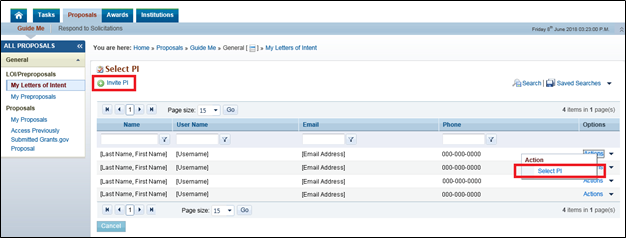
Figure 87. Select PI – Select PI, Invite PI
...
4. Once you have selected a PI, his/her information will auto-populate in the PI Information section. If you wish to change the assigned PI, click Change PI (Figure 98) and follow the steps above.

Figure 98. Submit Letter of Intent (LOI) – Change PI
...
1. The SRO/BO/AO Information section will populate once you select an SRO/BO/AO. Click Select SRO/BO/AO to generate a list of users registered to your Small Business in PAMS (Figure 109).

Figure 109. Submit Letter of Intent – SRO/BO/AO Information
2. If the user you wish to assign appears in the generated list, click the Actions/Views link and then Select SRO/BO/AO (Figure 1110).
3. If the user you wish to assign as the SRO/BO/AO is not listed, click the Invite SRO/BO/AO link located at the top of the page. This will allow you to send your desired SRO/BO/AO an invitation to register to PAMS. Once the user creates an account and registers to your institution, he/she will appear in the list of registered users. You may then select the user as the SRO/BO/AO for your LOI.
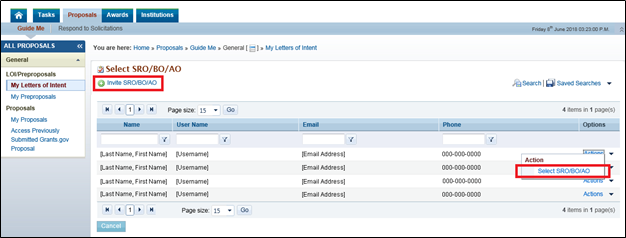
Figure 1110. Submit Letter of Intent – Select SRO/BO/AO
4. Once you have selected an SRO/BO/AO, his/her information will auto-populate in the SRO/BO/AO Information section. If you wish to change the assigned SRO/BO/AO, click Change SRO/BO/AO (Figure 1211) and follow the steps above.

Figure 1211. Submit Letter of Intent (LOI) – Change SRO/BO/AO
|
|
3.2.4 Subcontractor/Consultant Information
1. This section is optional. If you intend to contract a subcontractor or consultant on the award, you can include that information in the Subcontractor/Consultant Details field (Figure 1312).

Figure 1312. Submit Letter of Intent (LOI) – Subcontractor/Consultant Information
...
1. Enter a title in the Letter of Intent Title field (Figure 1413).
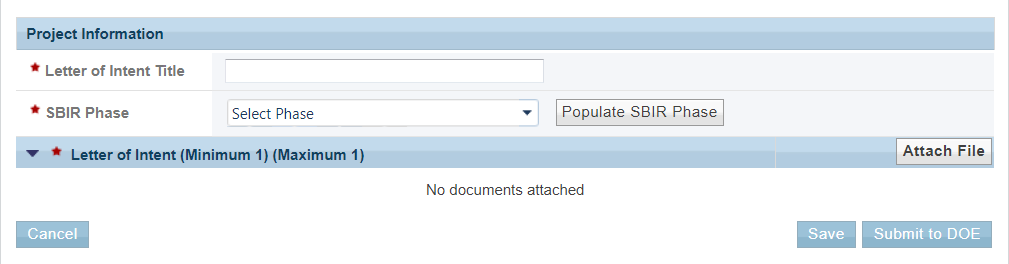
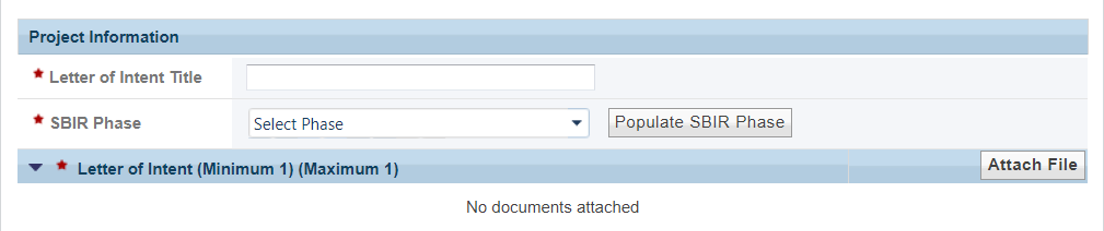
Figure 1413. Submit Letter of Intent (LOI) – Project Information – Title
2. Click the SBIR Phase dropdown, select a phase, and click the "Populate SBIR Phase" button (Figure 1514).
a. If If you select "Phase I" or "FastTrackFast-Track", PAMS will display the "Topic Information" section. The first dropdown in the "Topic/Subtopic" field contains the Topics for the SBIR announcement to which you are submitting an LOI. Select a Topic from the list and click the "Populate Subtopic" button. This will populate the second "Topic/Subtopic" dropdown with Subtopics specific to the Topic you selected. (Figure 1615)
b. If you select "Phase II", "Phase IIA", or "Phase IIB", or Phase IIC, PAMS will display the "Award Information" section. Enter the Award Number as it appears on the Assistance Agreement and click the "Populate Topic/Subtopic" button. PAMS will populate the "Topic/Subtopic" field with the Award's Topic and Subtopic. (Figure 1716)
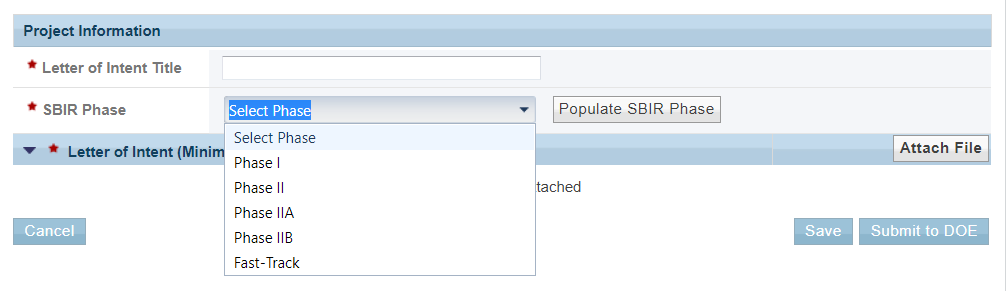
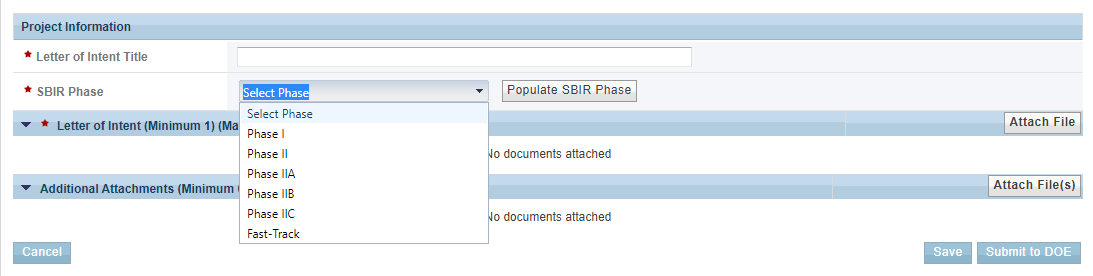
Figure 1514. Submit Letter of Intent (LOI) – Project Information – SBIR Phase
|
|

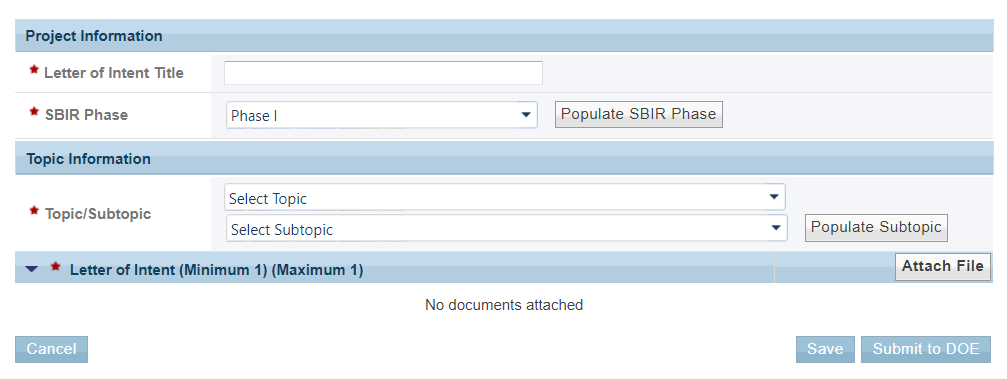
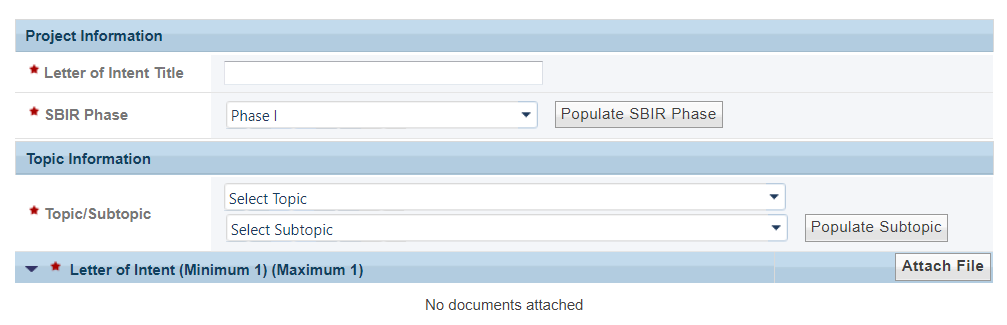
Figure 1615. Submit Letter of Intent (LOI) – Project Information – Topic
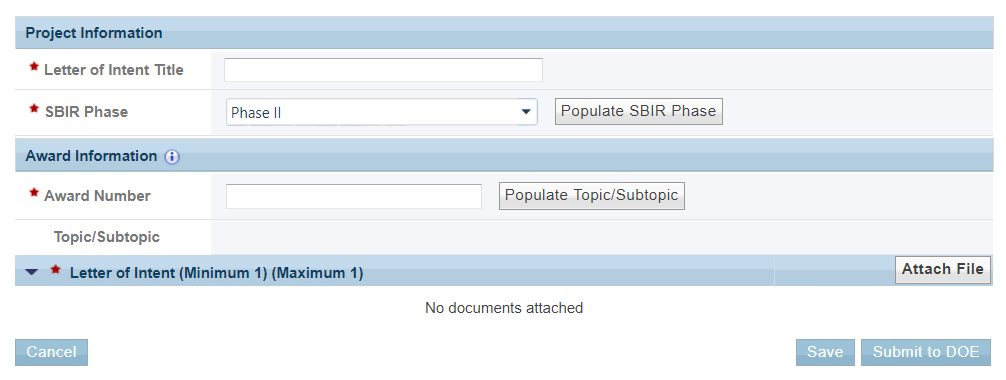
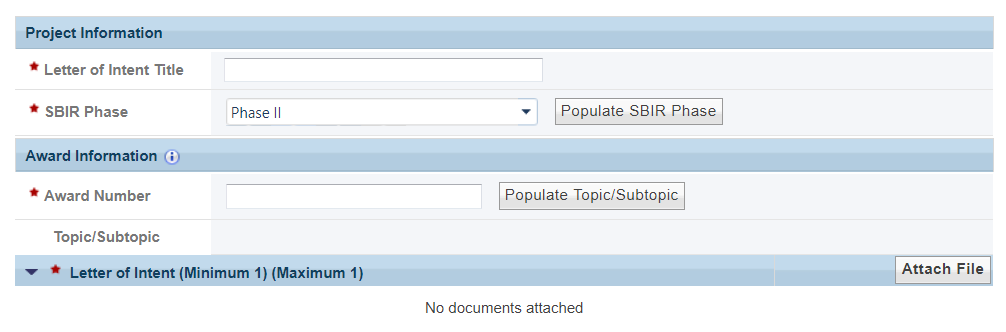
Figure 1716. Submit Letter of Intent (LOI) – Project Information – Populate Subtopic
5. Click the the Select Subtopic dropdown and select a subtopic (Figure 1817).
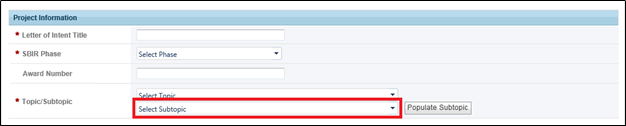
Figure 1817. Submit Letter of Intent (LOI) – Project Information – Select Subtopic
...
1. You must attach your LOI as a separate file in the Letter of Intent section. Click Attach file and then Browse to search for the document you wish to submit (Figure 1918).
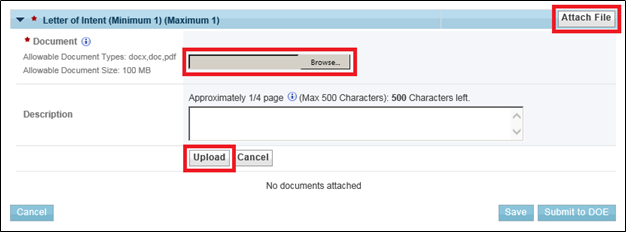
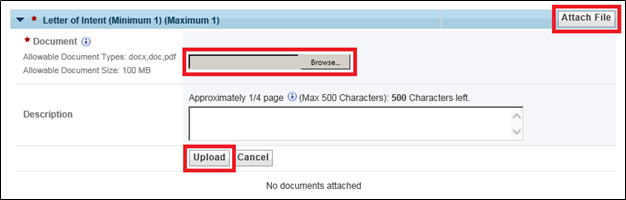
Figure 1918. Submit Letter of Intent (LOI) – Letter of Intent – Browse
...
2. Once you have selected a document, click Upload to upload the file to PAMS (Figure 1918).
3. To update the optional description, click Update Description in the Actions menu (Figure 2019).
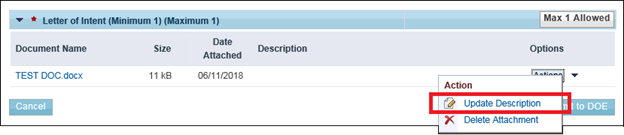
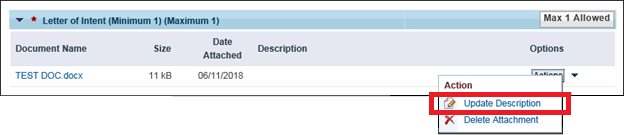
Figure 2019. Submit Letter of Intent (LOI) – Letter of Intent – Update Description
4. Click Save when you are finished to save any edits, or Cancel to cancel any edits (Figure 2120).
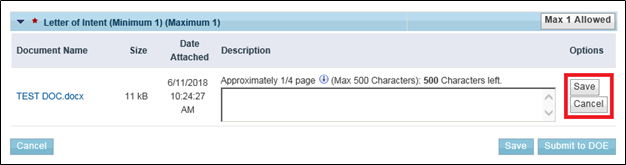
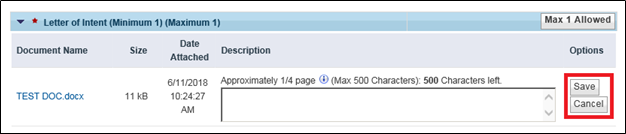
Figure 2120. Submit Letter of Intent (LOI) – Letter of Intent
5. To delete your attachment, click Delete in the Actions menu (Figure 2221).
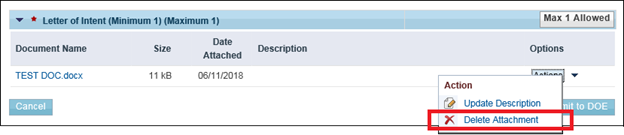
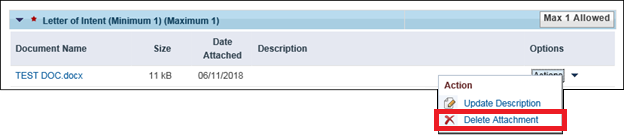
Figure 2221. Submit Letter of Intent (LOI) – Letter of Intent – Delete Attachment
6. You will receive a Confirmation message asking if you are sure you want to delete the file. Click Confirm to delete the file, or Cancel to cancel deletion (Figure 2322).
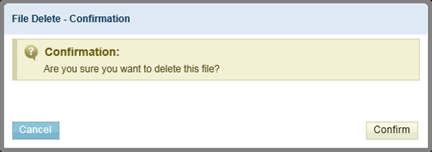
Figure 2322. Submit Letter of Intent (LOI) – Letter of Intent – File Delete – Confirmation
7. Begin at step 1 above to reattach an LOI.
3.2.7 Additional Attachments
Some Solicitations require the user to attach additional documents, such as current or pending support, bio-sketches, review COI listing, and others. Use the Additional Attachments section to attach those documents to your LOI.
Refer to section 3.2.6 Letter of Intent for guidance on attaching files.

Figure 23. Submit Letter of Intent (LOI) – Additional Attachments
3.2.7 Other Information
1. Click the Where did you learn about the DOE SBIR/STTR Program? dropdown and select the appropriate response. If you select "Other", specify where you learned about the SBIR/STTR Program in the If ‘Other’, Please specify box to the left of the dropdown. (Figure 24)

Figure 24. Submit Letter of Intent (LOI) – Other Information
3.3 Submitting a Letter of Intent
...
1. When all of the required fields are complete, you can submit your LOI. Click Submit to DOE in the bottom right corner to submit your completed LOI, or click Cancel in the bottom left corner to cancel any progress and return to the Funding Opportunity Announcements – List page without submitting an LOI (Figure 24).

Figure 24. Submit Letter of Intent (LOI) – Letter of Intent – Submit to DOE, Save, Cancel3).
| You may save your LOI at any time during the presubmission process. To do so, click the Save button in the bottom right corner next to the Submit to DOE button. |

2. After clicking Submit to DOE you will receive a a Success Message confirming that your LOI was submitted successfully (Figure 25).
...
3. Choose the LOI you would like to reopen, click the Actions/Views link, and select Reopen Letter of Intent (Figure 28).
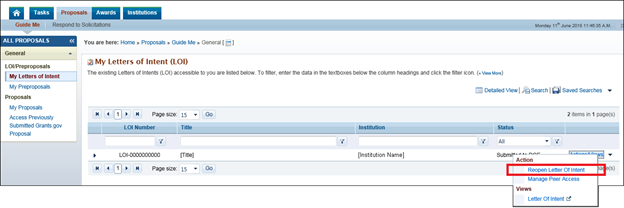
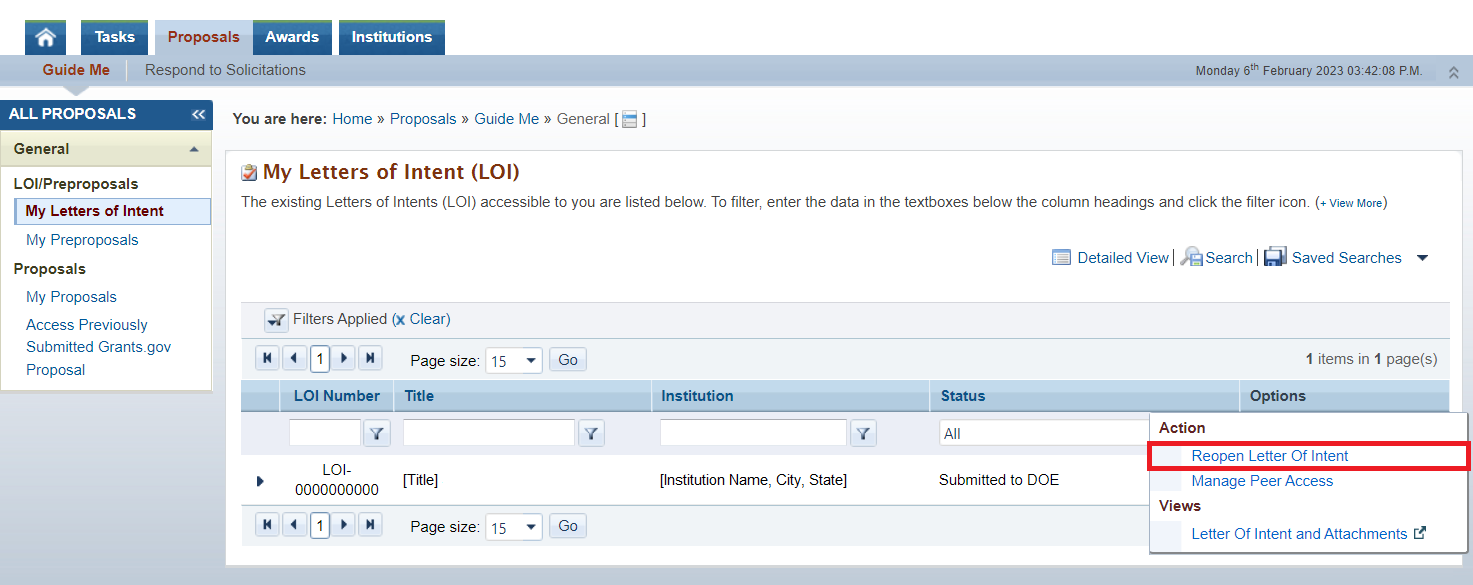
Figure 28. My Letters of Intent (LOI) – Reopen Letter of Intent
...
5. PAMS will load the Edit Letter of Intent (LOI) page, populated with all of the information you entered on the Submit Letter of Intent (LOI) page (Figure 5). Make any necessary edits, and then click Submit to DOE in the bottom right corner to resubmit the LOI.
...