
...
1. After clicking Create New Request on the Modification Requests – List page, PAMS will load the Awards – Select Modification Type page. Select the “No Cost Extension” radio button, and click Save and Continue in the bottom right corner of the page (Figure 3).
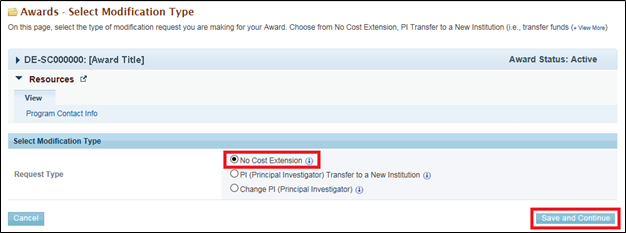
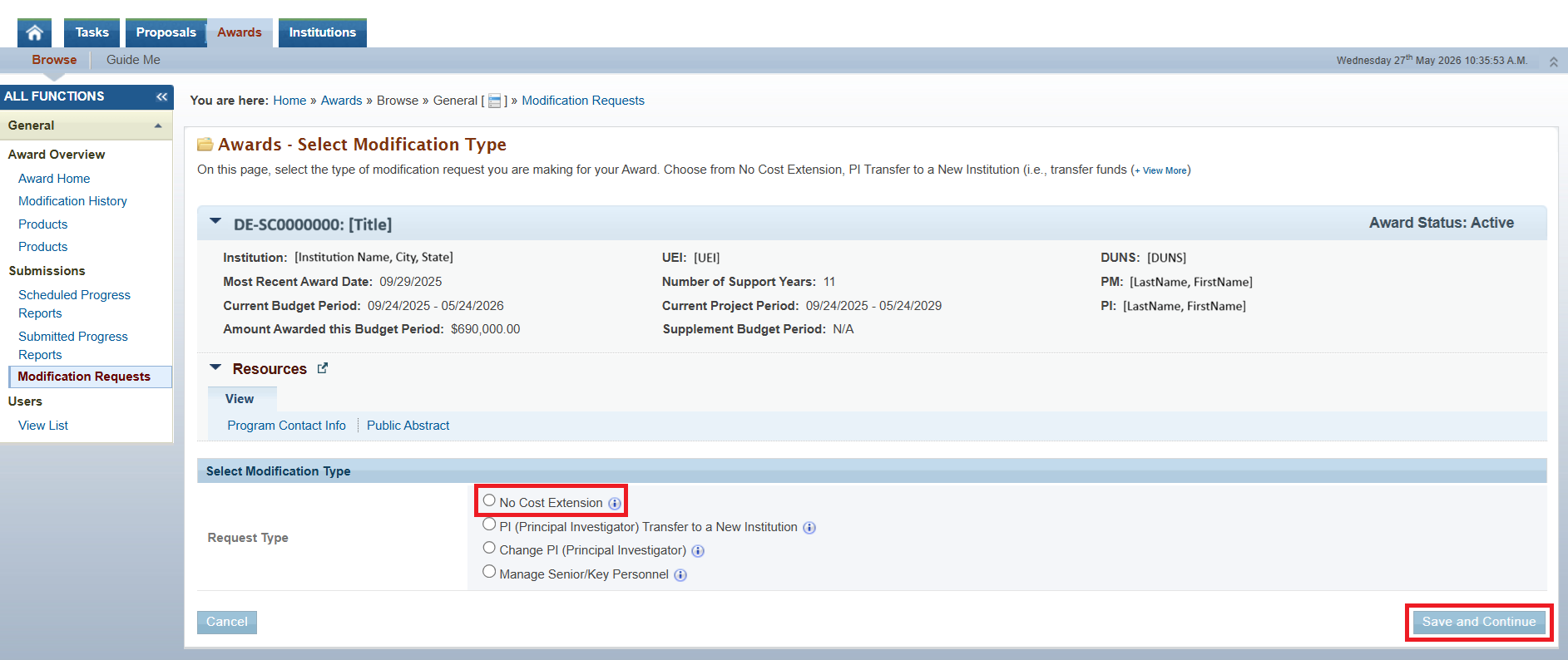
Figure 3. Awards – Select Modification Type – No Cost Extension
| If the user attempts to select an NCE and PAMS has received a Renewal Proposal for the next Project Period of the subject Award, PAMS will display the following confirmation overlay: "A Renewal Proposal for the next Project Period of this Award has been received. If a No Cost Extension is requested and approved this could impact when and if any Renewal Awards can be made. Please verify that you wish to request a No Cost Extension and select "Continue" to move forward with the request. Otherwise, please select "Cancel"." |

2. PAMS will load the Modification Request – No Cost Extension page. Refer to the table below for guidance on completing the Modification Request – No Cost Extension page (Figure 4).
...
1. After clicking Create New Request on the Modification Requests – List page, PAMS will load the Awards – Select Modification Type page. Select the “PI (Principal Investigator) Transfer to a New Institution” radio button, and click Save and Continue in the bottom right corner of the page (Figure 6).
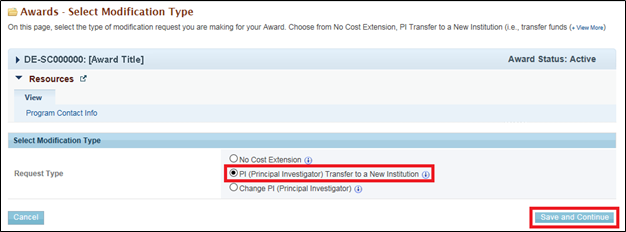
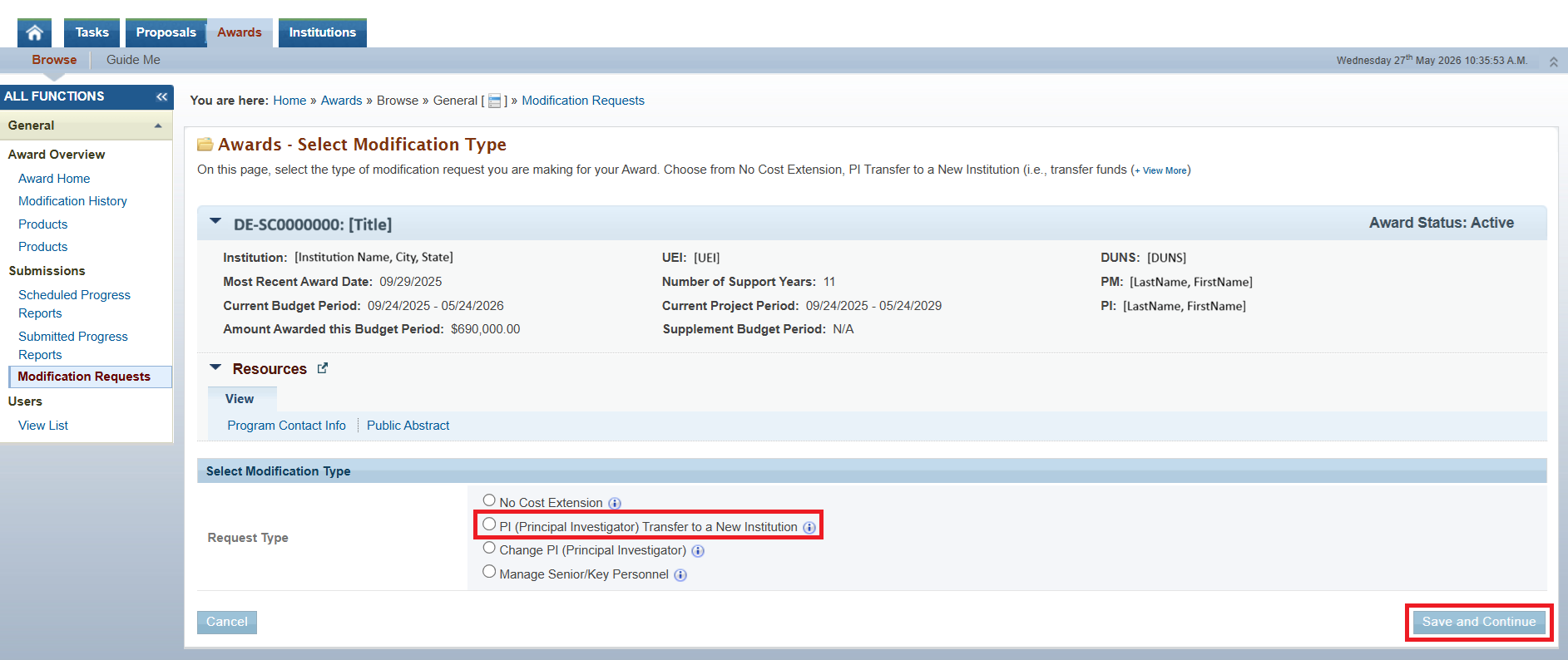
Figure 6. Awards – Select Modification Type – PI Transfer to a New Institution
| "PI (Principal Investigator) Transfer to a New Institution" will not be an option for Expired Awards. |

2. PAMS will load the Modification Request – PI Transfer to a New Institution page. Refer to the table below for guidance on completing the Modification Request – PI Transfer to a New Institution page (Figure 7).
...
1. After clicking Create New Request on the Modification Requests – List page, PAMS will load the Awards – Select Modification Type page. Select the “Change PI (Principal Investigator)” radio button, and click Save and Continue in the bottom right corner of the page (Figure 9).
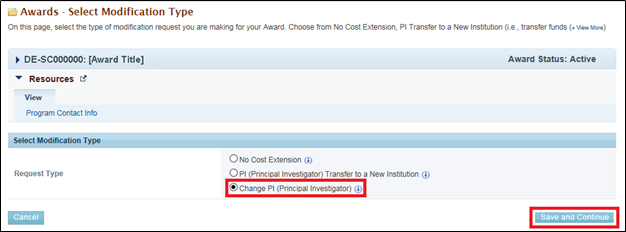
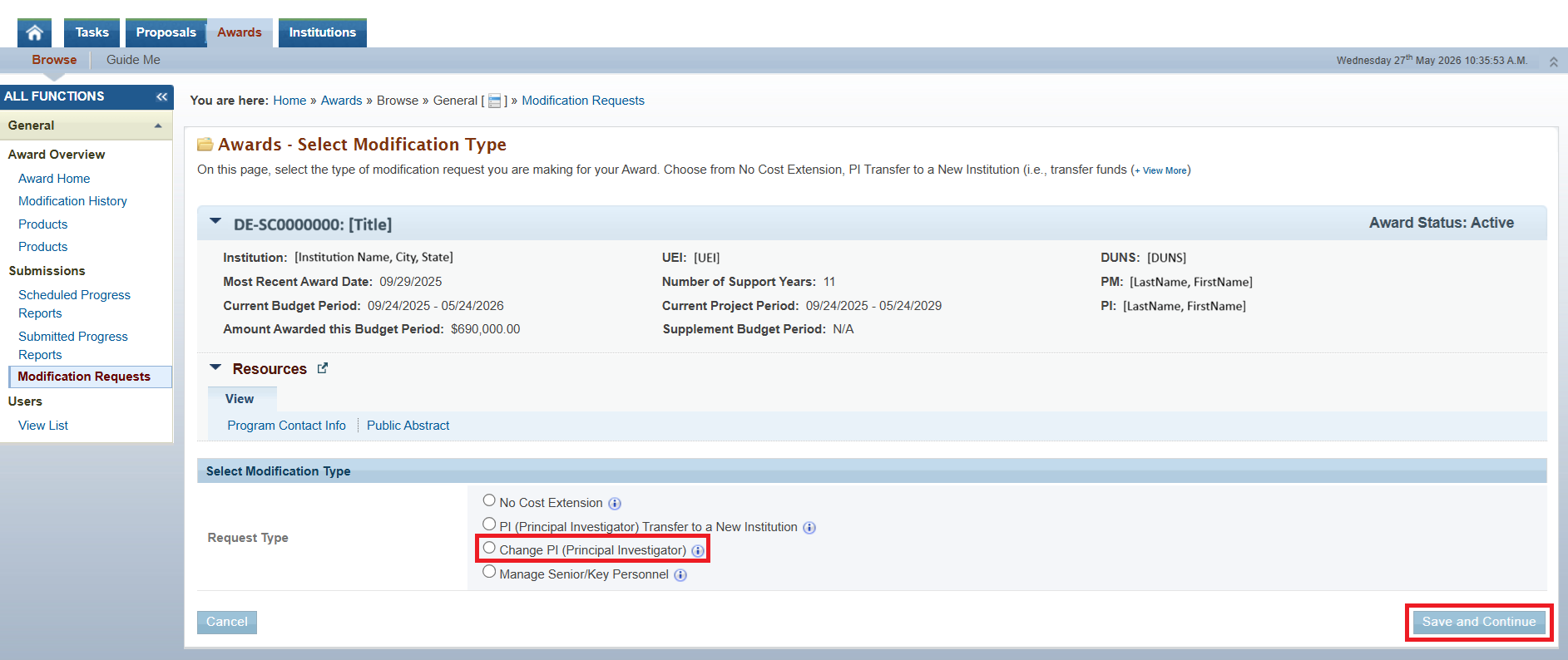
Figure 9. Awards – Select Modification Type – Change PI
...
Figure 11. Modification Requests – List – Change PI Success Message
3.5 Creating a Manage Senior/Key Personnel Award Modification Request
At some point, you may want to add, remove, or update the Senior/Key Personnel on the award. Use the following steps to create a Manage Senior/Key Personnel Award Modification Request.
1. After clicking Create New Request on the Modification Requests – List page, PAMS will load the Awards – Select Modification Type page. Select the “Manage Senior/Key Personnel” radio button, and click Save and Continue in the bottom right corner of the page (Figure 12).
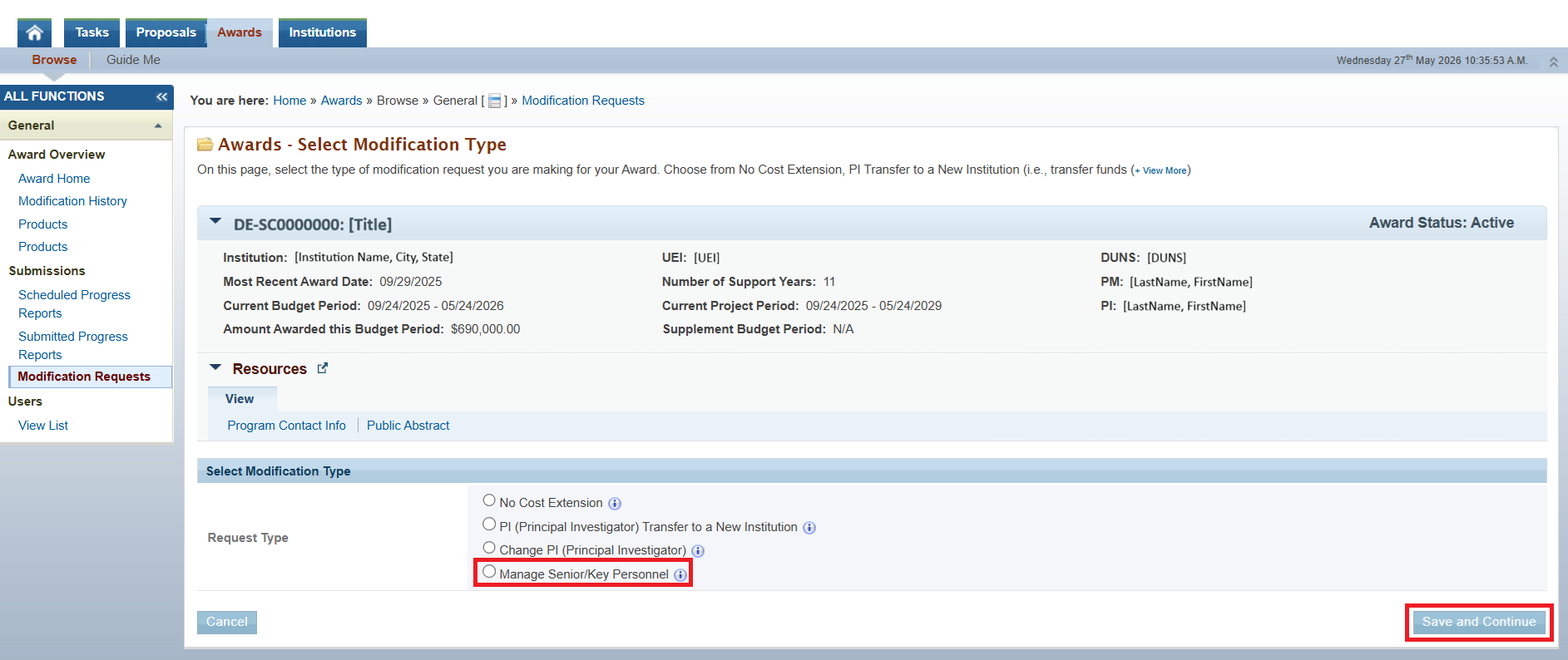
Figure 12. Awards - Select Modification Type - Manage Senior/Key Personnel
2. PAMS will load the Modification Request – Manage Senior/Key Personnel page. Refer to the table below for guidance on completing the Modification Request – Manage Senior/Key Personnel page (Figure 13).
Required Fields
| Element | Description |
|---|---|
Action to be Taken | Select the radio button that corresponds to the action you wish to perform. |
| First Name | Enter the first name of the personnel you wish to modify. |
| Last Name | Enter the last name of the personnel you wish to modify. |
Enter the email address of the personnel you wish to modify. |
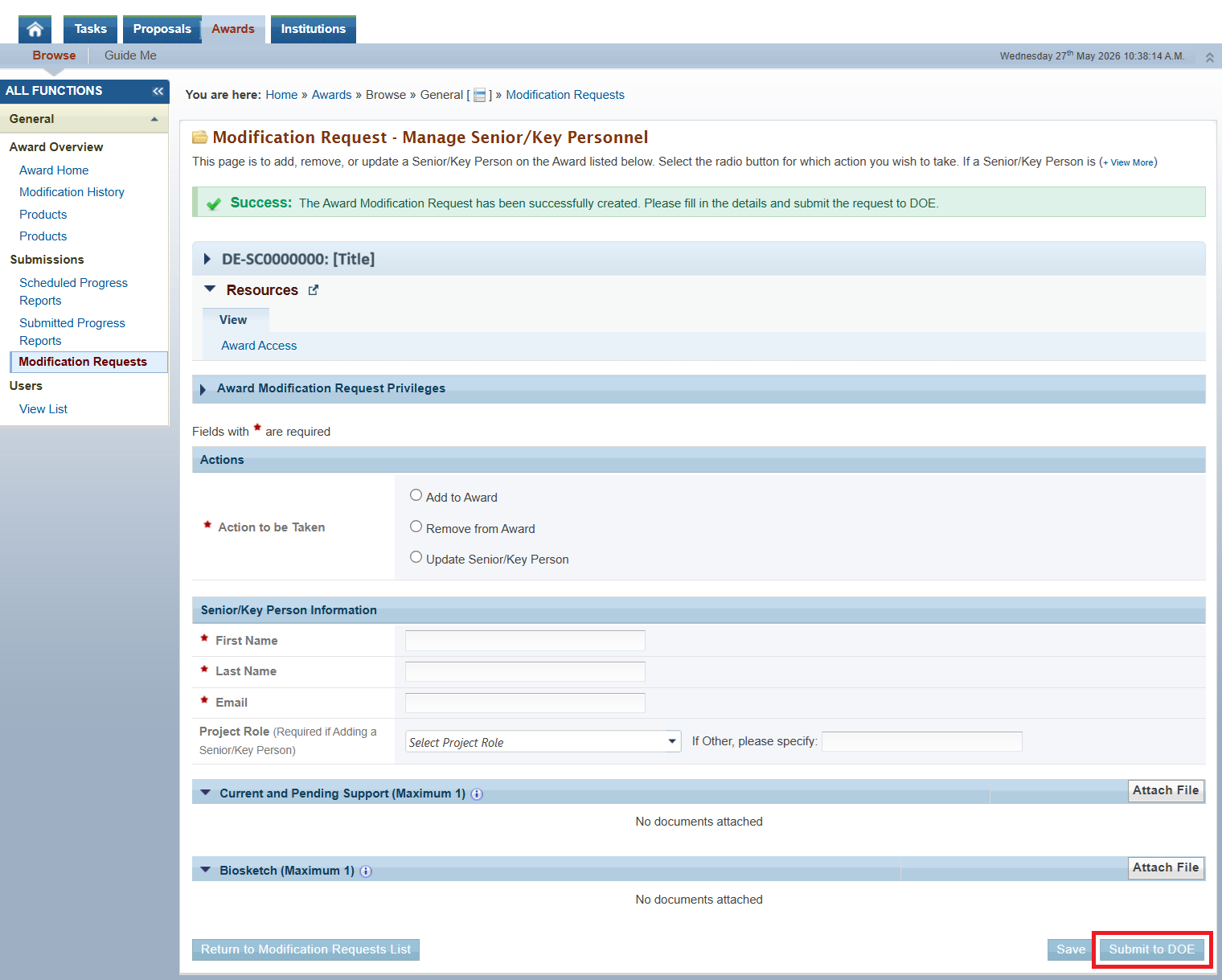
Figure 13. Modification Request - Manage Senior/Key Personnel
| To update a Senior/Key Person, at least one of the following fields must be populated in addition to the required fields:
|
3. Once you have completed the required fields, click the Submit to DOE button in the bottom right corner of the page (Figure 13).
4. PAMS will redirect you to the Modification Requests – List page and display a Success message confirming that your request was submitted successfully (Figure 14).

Figure 14. Modification Requests - List - Manage Senior/Key Personnel Success Message