
...
Figure 5. Progress Report – Status Page Page
| For Lab Awards, the Award header will display a Lab Award-specific header which displays a "Performance Period" field in place of the "Budget Period" field and does not display the "Frequency" or "Reporting Period" fields. |

3.3 Completing the Cover Page
...
Figure 10. Progress Report – Products
3.5.1 Adding Products
| For Labs Awards, PAMS will display an "Additional Products (Response for DOE)" section below the "Other Products" section. |

3.5.1 Adding Products for Non-Lab Awards
1. To add or update Products for non-Lab Awards, click the Add/1. To add or update Products, click the Add/Update Products link above the Publications section on the Progress Report – Products page. PAMS will navigate to the Products – Add/Update Products page, which displays a list of Products associated with the Award.
...
| You can remove Products on the Progress Report – Products page by selecting the Remove from Report action in the Action menu for the Product. |
3.5.3 Adding Products for Lab Awards
1. To add or update Products for Lab Awards, click the Add Products to Report link above the Publications section on the Progress Report – Products page.
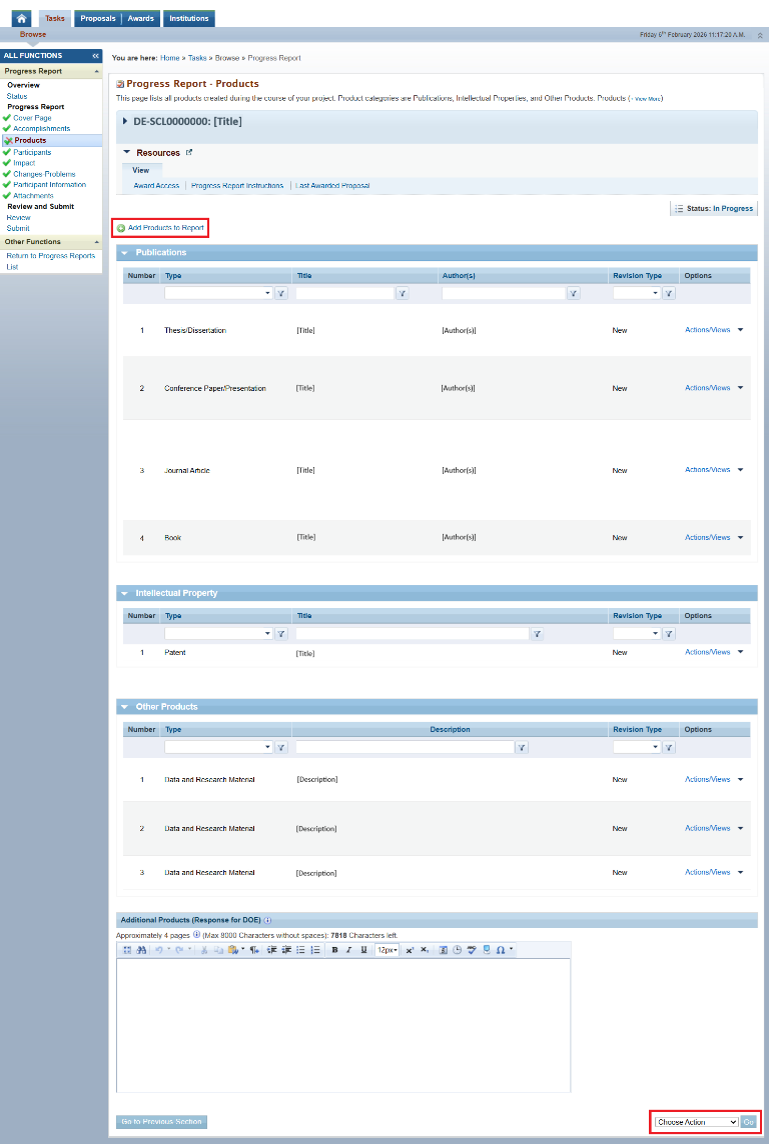
Figure 14. Progress Report – Products, Add Products to Report
2. PAMS will navigate to the Products - Select Award Products page, which displays a list of Products available to associate with the awardee report. To add Products from OSTI.gov, click the Add Products to Award from OSTI.gov link below the Resources header.
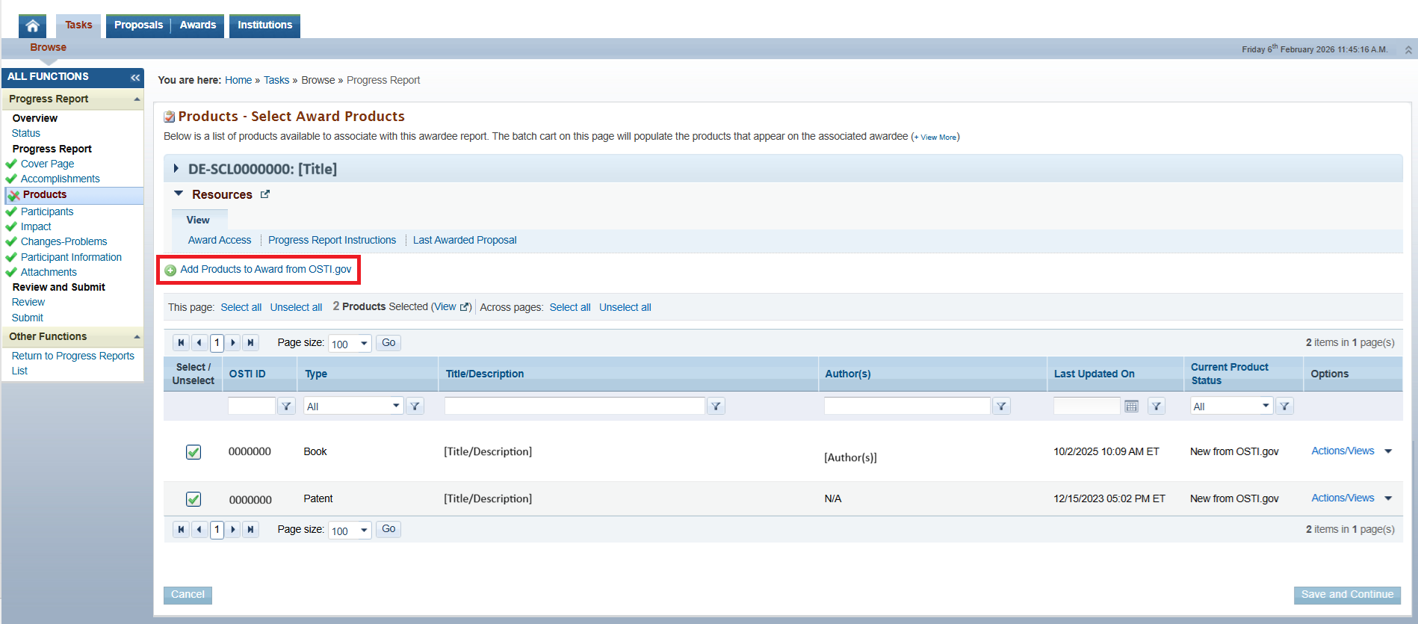
Figure 15. Products - Select Award Products
| If a Product was approved on a previously submitted Lab Awardee Report and was prepopulated on the current Awardee Report, the checkbox for that Product will be selected by default and you will not be able to deselect it. |
3. PAMS will navigate to the Products – Add Products from OSTI.gov page. This page allows you to search for and select STI Products from OSTI.gov to associate to your Lab Award. Selected Products will be linked to your Award record for tracking and reporting purposes. To locate a Product, enter at least one search parameter in the basic or advanced search parameters and click the Search button.
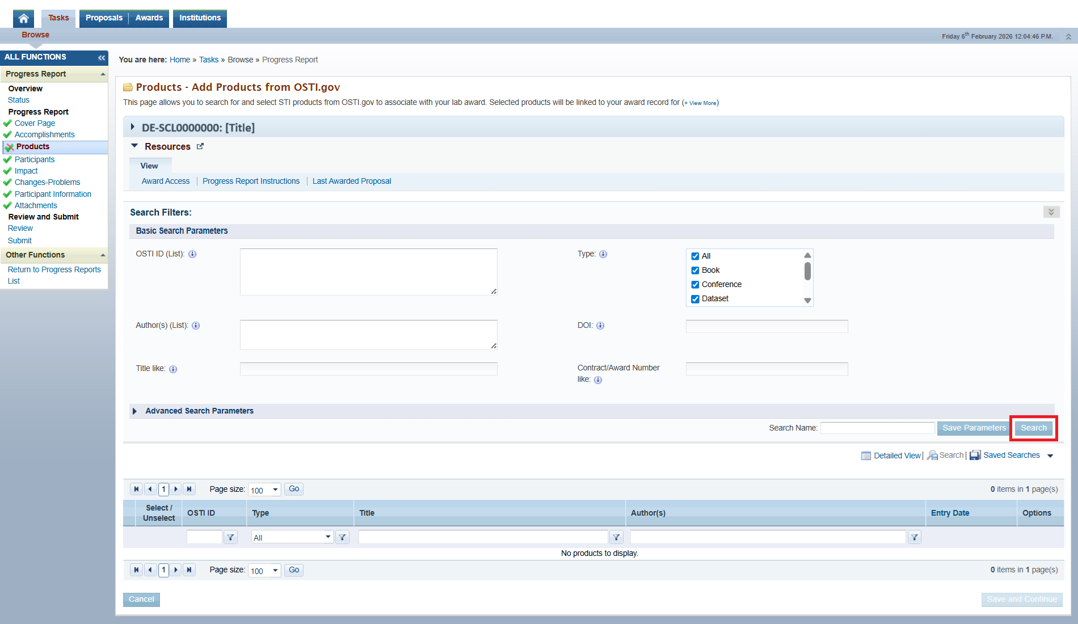
Figure 16. Products – Add Products from OSTI.gov
4. PAMS will reload the page with search results from OSTI. Once you have found the Product you would like to associate to your Award, select the checkbox associated to that Product and click Save and Continue in the bottom right corner.
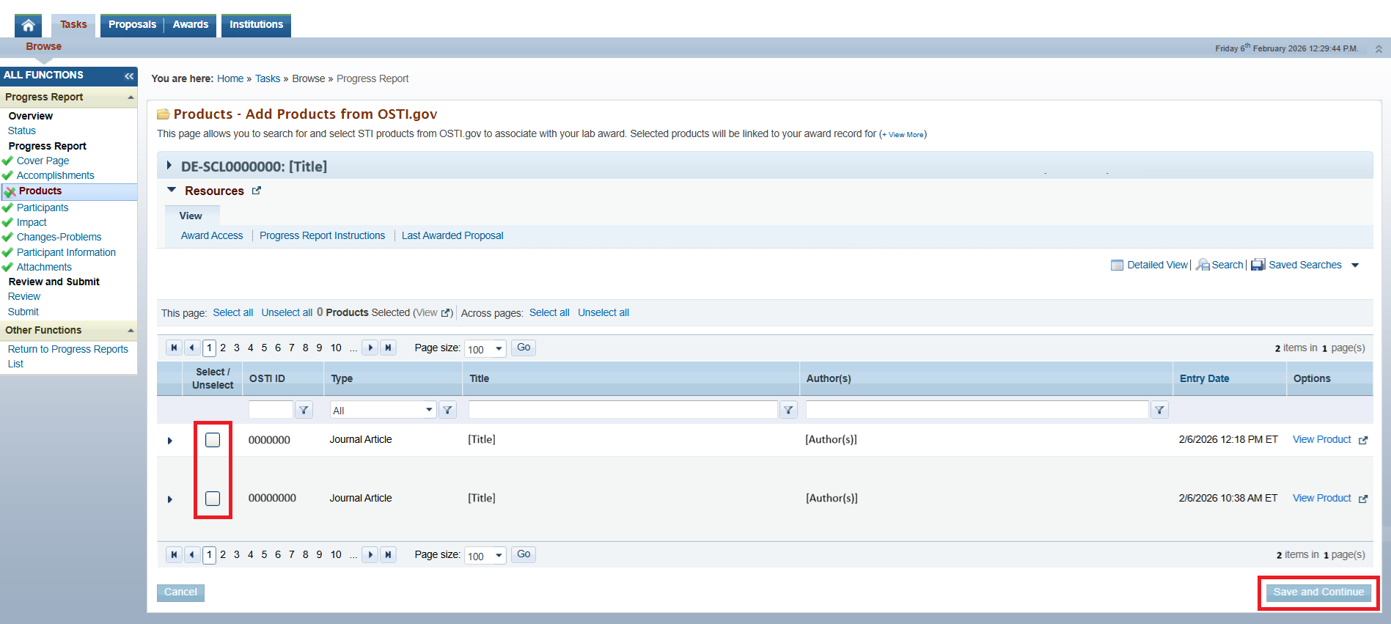
Figure 17. Products – Add Products from OSTI.gov, Save and Continue
5. PAMS will return to the Products – Select Award Products page and display a green success message confirming that the Products list of the report was updated successfully.

Figure 18. Products – Select Award Products, Success
6. When you are finished selecting Products to add to the Award, click Save and Continue in the bottom right corner.
7. PAMS will return to the Progress Report – Products page and display a green success message confirming that the Products list of the report was updated successfully.

Figure 19. Progress Report – Products, Success
3.5.
...
4 Marking the Products Section as Complete
Use the following steps to mark the Products section of the progress report as complete.
...
2. PAMS will redirect you to the next section and display a Success message confirming that the Products page was marked as complete successfully.
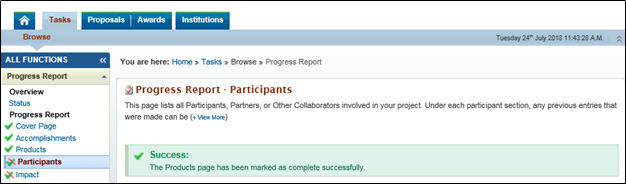
Figure 1420. Progress Report – Products – Success Message
...
2. PAMS will load the Progress Report – Participants page. Refer to the following sections for steps on how to add each applicable Participant type.
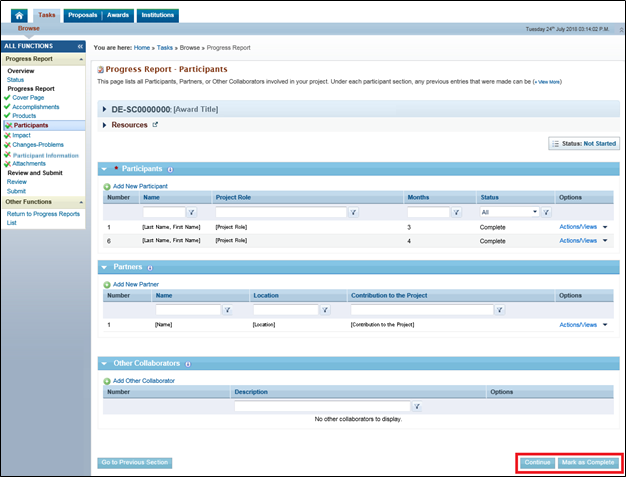
Figure 1521. Progress Report – Participants
...
2. PAMS will load the Progress Report – Add New Participant – List page (Figure 26). Use the Last Name like, First Name Like, and Email like fields to search for the registered PAMS user(s) you would like to add to the progress report. Click Search to see the list of results.
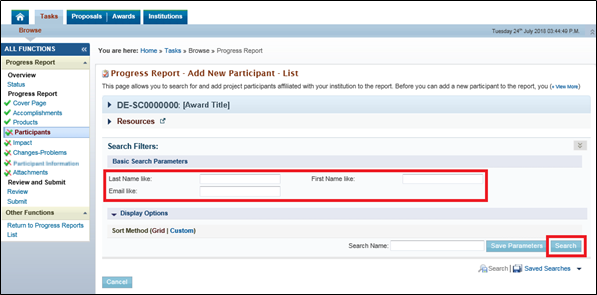
Figure 1622. Progress Report – Add New Participant – List
3. Browse the list. When you have found the user you would like to add, click Add Participant in the Options column.
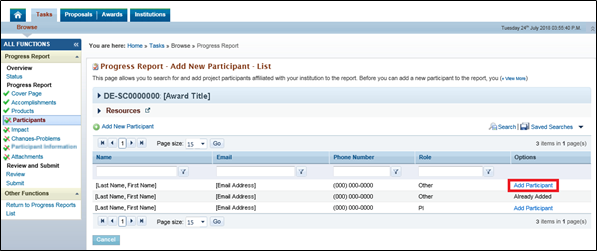
Figure 1723. Progress Report – Add New Participant – List, Add Participant
...
Element | Description |
First Name | The first name of the person you are reporting as a participant will already be entered. You will not be able to edit this field. |
Last Name | The last name of the person you are reporting as a participant will already be entered. You will not be able to edit this field. |
Project Role | Use the dropdown to select the role the participant filled on the project. If Other, specify the project role in the box to the right of the dropdown. |
Person Months Worked | Enter the number of months the person worked on the project. Round the number to the nearest whole number. |
Contribution to the Project | Enter a description of the person’s contribution to the project. |
International Collaboration? | Select the “Yes” or “No” radio button to indicate whether the participant collaborated with any individuals in a foreign country as a part of this project during the reporting period. |
International Travel? | Select the “Yes” or “No” radio button to indicate whether the participant travelled to a foreign country as a part of this project during the reporting period. |
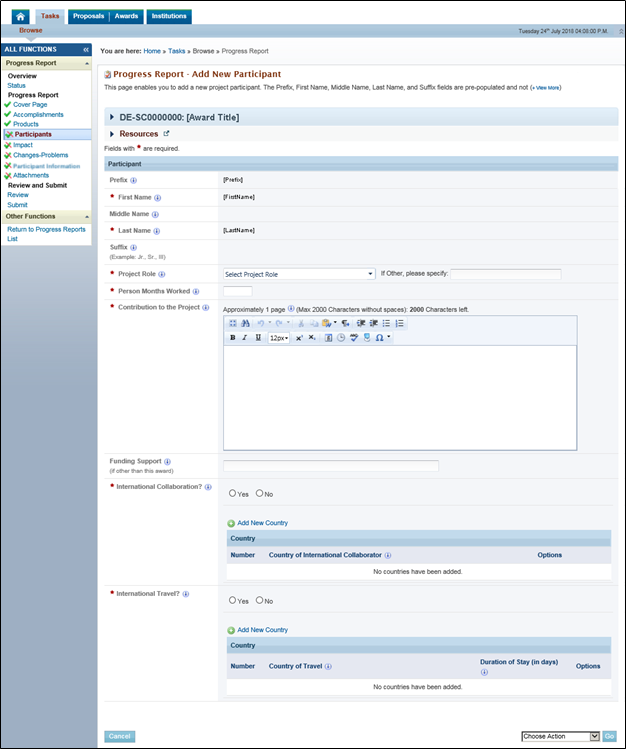
Figure 1824. Progress Report – Add New Participant
5. Once you have completed the page, select Mark as Complete from the Choose Action dropdown and click Go to save your work and return to the Progress Report – Participants page.
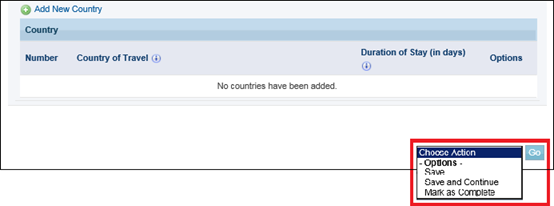
Figure 1925. Progress Report – Add New Participant – Choose Action
...
2. PAMS will load the Progress Report – Add New Partner page. Refer to the table below to complete the required fields to add a new partner to the progress report.
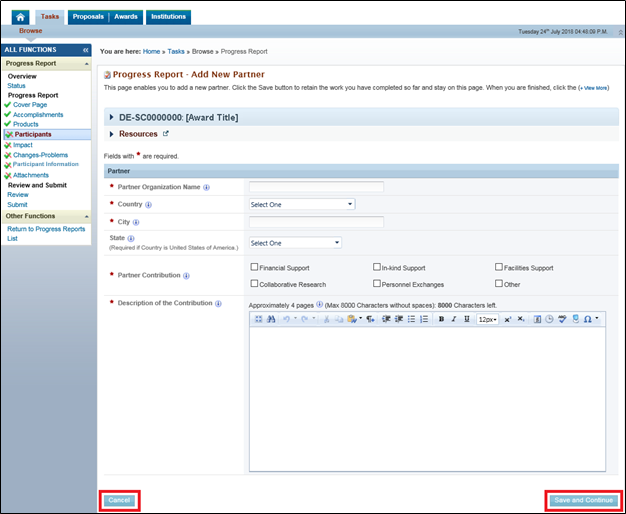
Figure 2026. Progress Report – Add New Partner
...
2. PAMS will load the Progress Report – Add Other Collaborator page. Refer to the table below to complete the required fields to add an Other Collaborator to the progress report.
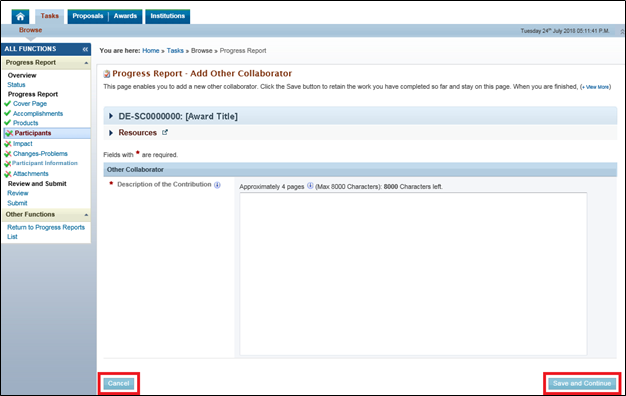
Figure 2127. Progress Report – Add Other Collaborator
...
3. PAMS will display a Confirmation message asking if you are sure you want to delete the participant. Read the message carefully. If you are sure you want to delete the participant, click Confirm. If you do not want to delete the participant, click Cancel.
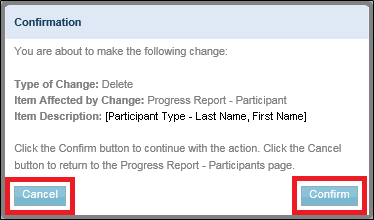
Figure 2228. Progress Report – Participant – Delete Participant Confirmation Message
4. PAMS will load a Success message confirming that the participant was deleted successfully.
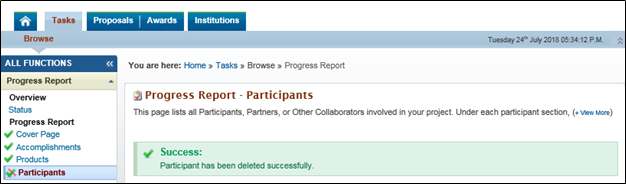
Figure 2329. Progress Report – Participant – Delete Participant Success Message
...
2. PAMS will redirect you to the next section and display a Success message confirming that the Products page was marked as complete successfully.
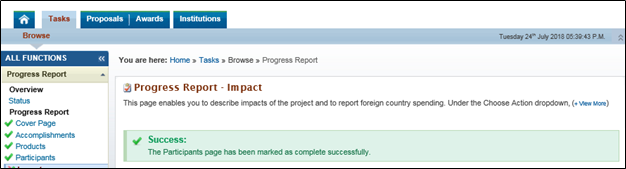
Figure 2430. Progress Report – Participant Success Message
...
| Textboxes that are left blank are marked as “Nothing to Report”. |

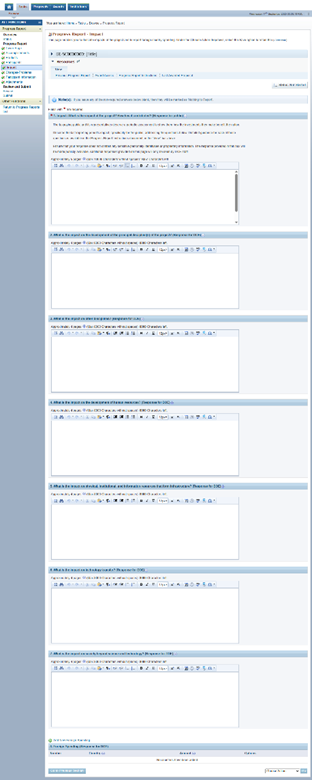
Figure 2531. Progress Report – Impact
...
1. Click Add New Foreign Spending above the Foreign Spending header on the Progress Report – Impact page.
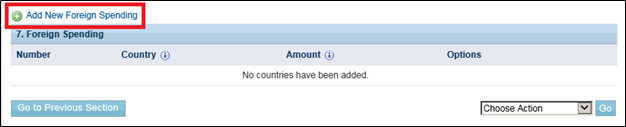
Figure 2632. Progress Report – Impact – Foreign Spending
...
3. Enter the dollar amount of the award’s funds spent in the foreign country.

Figure 2733. Progress Report – Impact – Foreign Spending, Information
...
1. Once you have completed the Impact section, select Mark as Complete from the Choose Action dropdown and click Go.
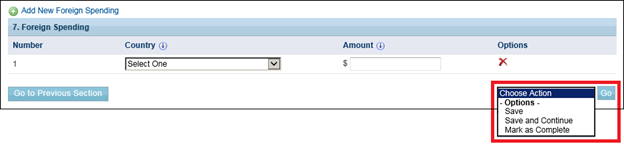
Figure 2834. Progress Report – Impact – Choose Action
2. PAMS will redirect you to the next section and display a Success message confirming that the Products page was marked as complete successfully.
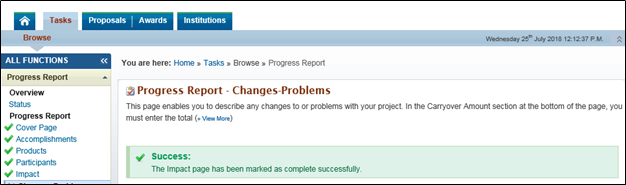
Figure 2935. Progress Report – Impact – Success Message
...
|
|

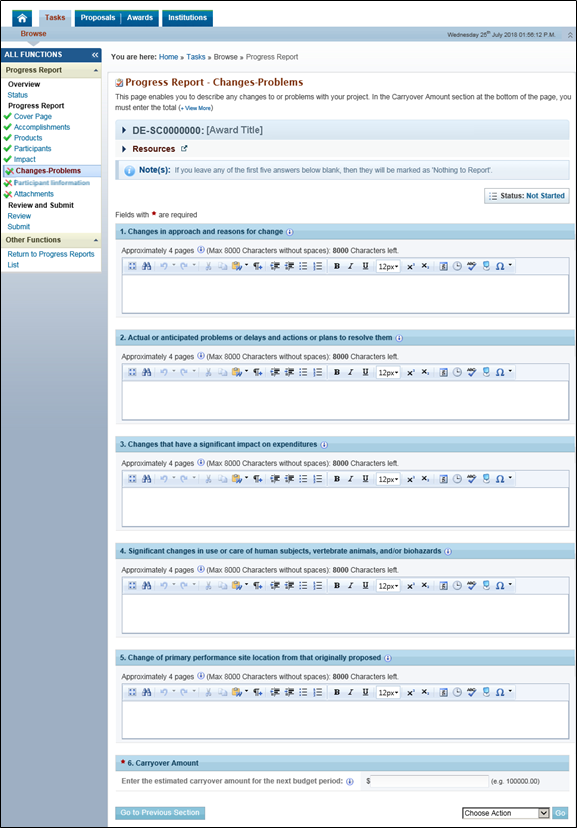
Figure 36.
...
Progress Report – Changes-Problems
| For Lab Awards, the field under section "6. Carryover Amount" will read as follows: "Projected uncosted project balance for current scope of work at reporting period end." |
...
3. Once you have completed the Changes-Impact section, select Mark as Complete from the Choose Action dropdown in the bottom right corner of the page and click Go.
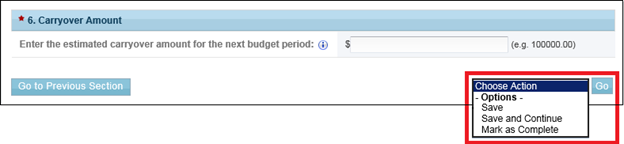
Figure 3137. Progress Report – Changes-Problems – Choose Action
4. PAMS will redirect you to the next section and display a Success message confirming that the Changes-Problems page was marked as complete successfully.
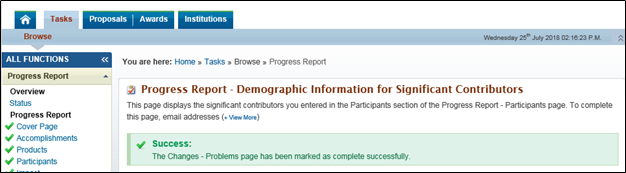
Figure 3238. Progress Report – Changes-Problems Success Message
...
|
|

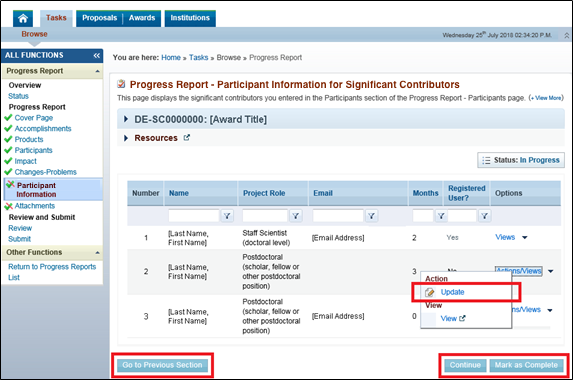
Figure 3339. Progress Report – Participant Information for Significant Contributors
3. PAMS will load the Progress Report – Update Participant Information for Significant Contributors page. Enter the user’s email address.
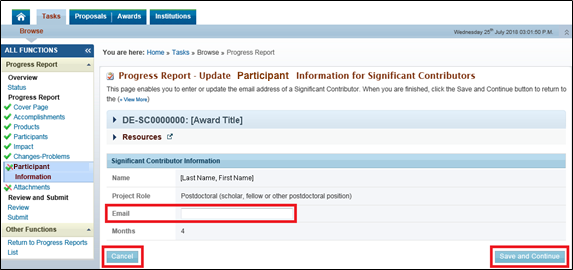
Figure 3440. Progress Report – Update Participant Information for Significant Contributors
...
5. PAMS will display a Success message confirming that the information was saved successfully.
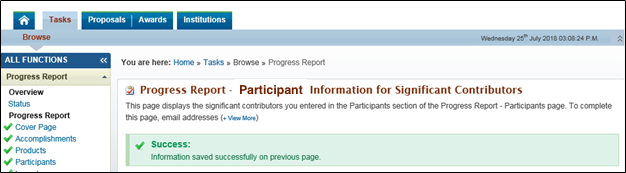
Figure 3541. Progress Report – Update Participant Information for Significant Contributors Success Message
...
7. PAMS will redirect you to the next section and display a Success message confirming that the Participant Information for Significant Contributors page was marked as complete successfully.
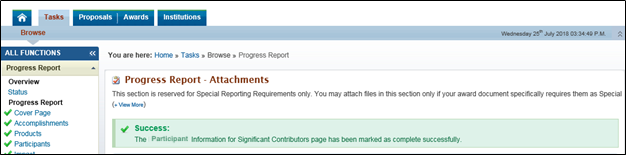
Figure 3642. Progress Report – Participant Information for Significant Other Success Message
...
2. PAMS will load the Progress Report – Attachments page. To add attachments, click Attach File in the Special Reporting Requirements header.
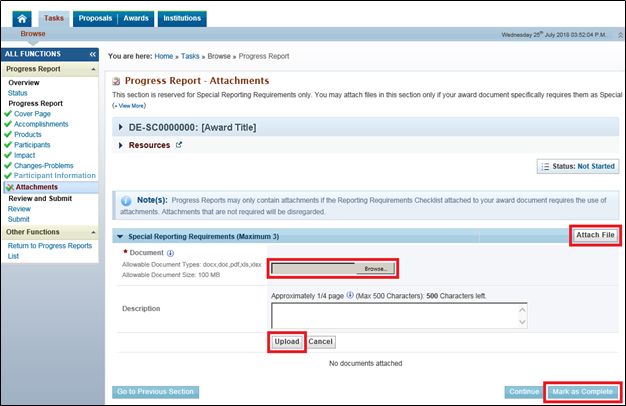
Figure 3743. Progress Report – Attachments
| For Lab Awards, the Note will read as follows: "Progress Reports may only contain attachments if required by DOE. Attachments that are not required will not be disregarded." |
3. Click Browse, and select the files you would like to attach to the progress report.
...
6. PAMS will redirect you to the next section and display a Success message confirming that the Progress Report – Attachments page was marked as complete successfully.
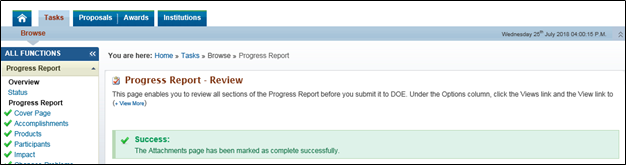
Figure 3844. Progress Report – Attachments Success Message
...
1. Select Update Description in the Actions menu in the Options column.

Figure 3945. Progress Report – Attachments – Update Description
2. Click Save when you are finished to save any changes, or click Cancel to cancel any changes.

Figure 4046. Progress Report – Attachments – Update Description Save/Cancel
...
1. Select Delete in the Actions menu in the Options column.

Figure 4147. Progress Report – Attachments – Delete
2. PAMS will display a Confirmation message asking if you are sure you want to delete the attachment. If you are sure you want to delete the attachment, click Confirm. If you do not want to delete the attachment, click Cancel. PAMS will reload the Progress Report – Attachments page, and the attachment will no longer display in the Special Reporting Requirements section.
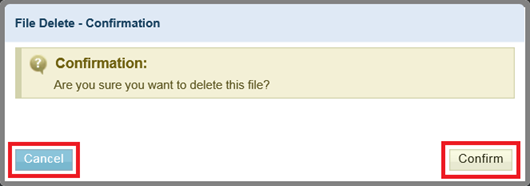
Figure 4248. Progress Report – Attachments – Delete Attachment Confirmation Message
...
2. To review a section, click View in the Views dropdown menu in the Options column.
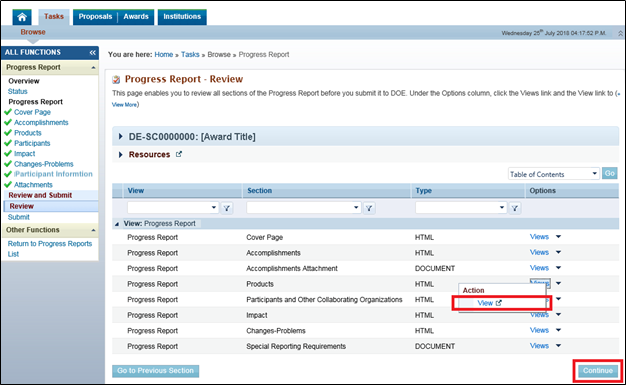
Figure 4349. Progress Report – Review, View
...
3. Click the Preview Public Progress Report PDF or Preview DOE Progress Report buttons in the bottom right corner of the page to preview the public and DOE versions of the progress report before submitting. This is your last opportunity to review the progress report before submitting it to DOE.
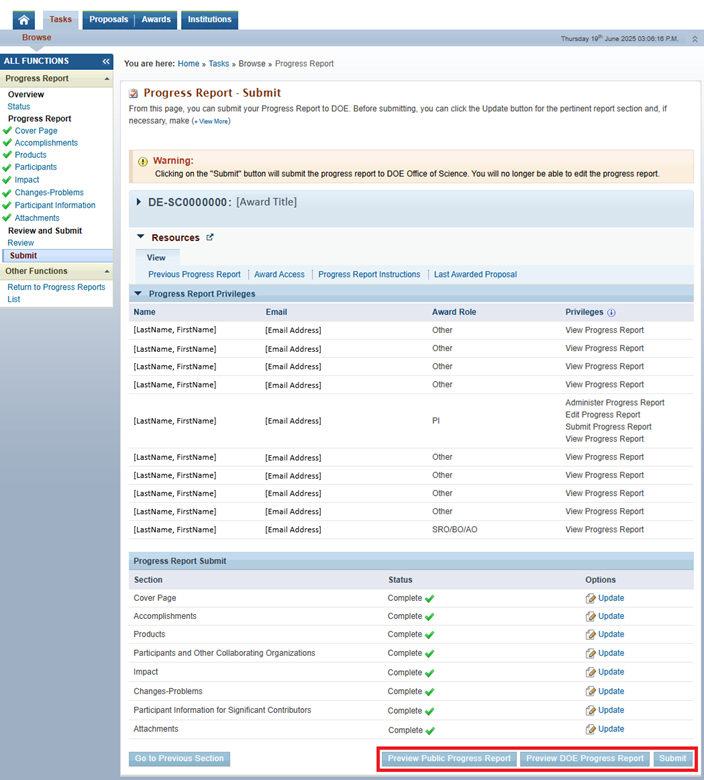
Figure 4450. Progress Report – Submit
...
6. PAMS will redirect you to the Progress Report – List page and display a Success message confirming that the progress report was submitted successfully.
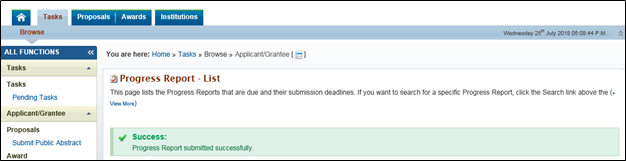
Figure 4551. Progress Report – List, Success Message